Connect a Telegram bot so your agent handles 1‑on‑1 customer chats automatically.
Connect a Telegram bot and your agent will automatically reply to private messages sent to it. Telegram uses a bot token from Telegram’s official @BotFather — no Facebook or OAuth involved.
Only 1‑on‑1 private chats are supported. Messages sent in Telegram groups are ignored.
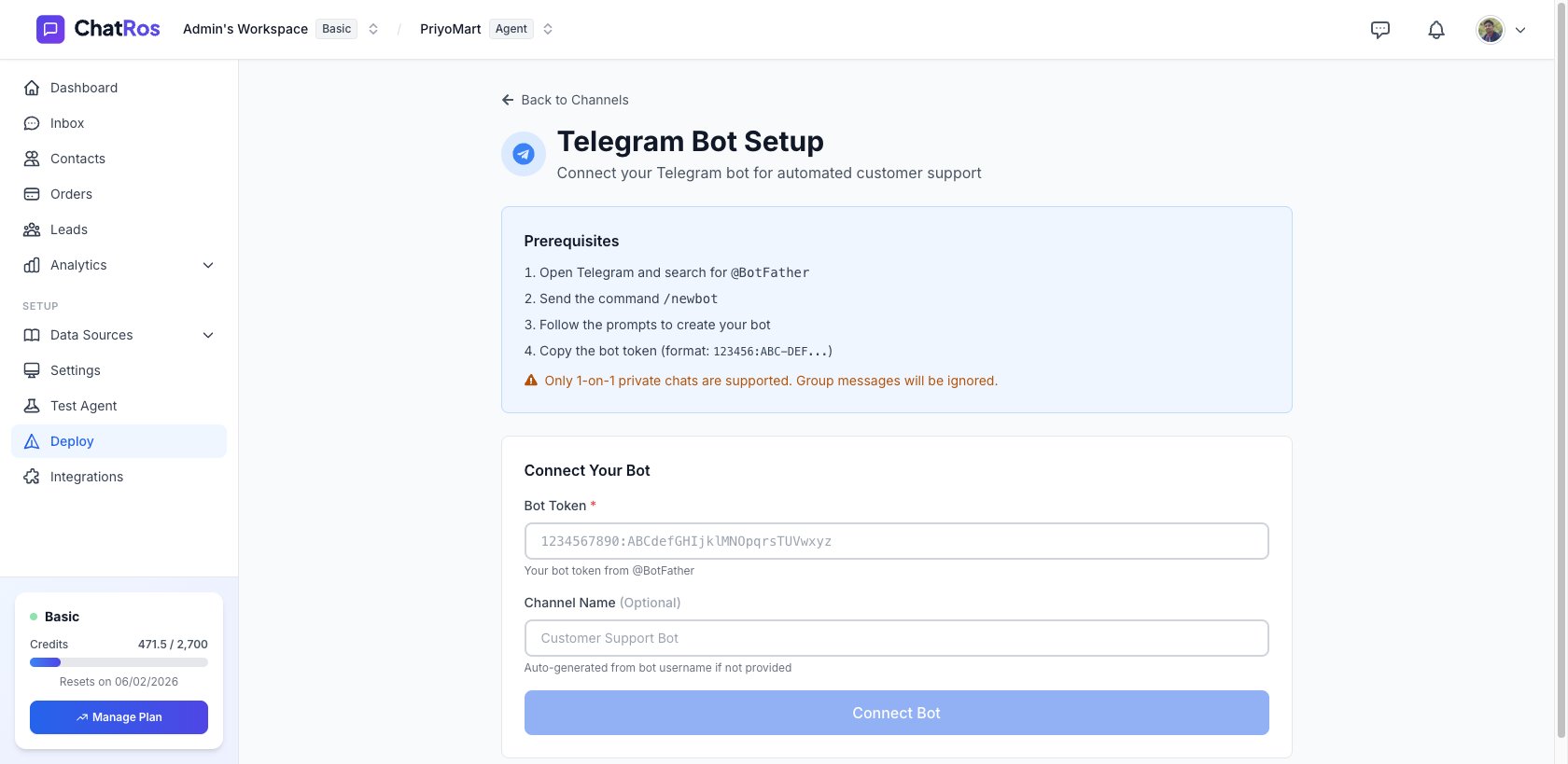
From your agent, go to Deploy → Integration Channels → Telegram Bot.
The Telegram Bot Setup page — prerequisites and the Bot Token form.
2
Paste your bot token
Paste the token into the Bot Token field. Optionally give the channel a name (e.g. Customer Support Bot) — if you leave it blank, it’s generated from the bot’s username.
3
Click “Connect Bot”
ChatRos configures the webhook with Telegram automatically. You’ll see a Telegram Bot Connected! confirmation with your bot’s username, ID, and status.
📸 Screenshot: the Telegram Bot Connected! success state (to be added).
4
Test it
Message your bot on Telegram (@your_bot_username) — your agent replies automatically.
Telegram does not provide delivery or read receipts. This is a Telegram platform limitation — unlike WhatsApp, Messenger, and Instagram, there’s no “seen” status to report.
Return to Deploy → Telegram Bot to view the connected bot or click Disconnect Bot to stop handling its messages.
{"docsConfig":{"theme":"mint","$schema":"https://mintlify.com/docs.json","name":"ChatRos Documentation","colors":{"primary":"#4F46E5","light":"#7C3AED","dark":"#4338CA"},"logo":{"light":"https://mintcdn.com/softiustech/r0-Hu3fzPtGK9Luj/logo/light-large.svg?fit=max\u0026auto=format\u0026n=r0-Hu3fzPtGK9Luj\u0026q=85\u0026s=537b699737fcd81a760bbb8aed916e73","dark":"https://mintcdn.com/softiustech/r0-Hu3fzPtGK9Luj/logo/dark-large.svg?fit=max\u0026auto=format\u0026n=r0-Hu3fzPtGK9Luj\u0026q=85\u0026s=3aa14c4e4e4368d2939eafcc9de7b2ba"},"favicon":"https://mintcdn.com/softiustech/r0-Hu3fzPtGK9Luj/favicon.svg?fit=max\u0026auto=format\u0026n=r0-Hu3fzPtGK9Luj\u0026q=85\u0026s=29952df389fa814424675f3eb5699b5d","navbar":{"links":[{"href":"mailto:support@chatros.com","label":"Support"}],"primary":{"type":"button","label":"Dashboard","href":"https://chatros.com/dashboard"}},"footer":{"socials":{"x":"https://x.com/chatros","github":"https://github.com/chatros","linkedin":"https://linkedin.com/company/chatros"}},"contextual":{"options":["copy","view","chatgpt","claude","perplexity","mcp","cursor","vscode"],"display":"header"},"styling":{"latex":false},"navigation":{"global":{"anchors":[{"anchor":"Documentation","icon":"book-open-cover","href":"https://docs.chatros.com/"},{"anchor":"Dashboard","icon":"gauge","href":"https://chatros.com/dashboard"}]},"pages":[]}},"deployment":{"deploymentMetadataValue":{"subdomain":"softiustech","hasAudioNarration":false,"actualSubdomain":"softiustech","customDomains":["docs.chatros.com"],"gitSource":{"type":"github","owner":"ashraful1599","repo":"docs","deployBranch":"main","contentDirectory":"","isPrivate":false,"mountPath":"","label":""},"chroma":{"liveDeploymentHistoryId":"6a55fd5cc9c475dea5aea3ae","collectionId":"d17c53d8-6746-4def-a13d-02bed5f27c1f","schemaVersion":"v3"},"entitlements":{},"buildId":"6a55fd5cc9c475dea5aea3ae:success","clientVersion":"0.0.3971","searchFilterCounts":[{"language":"default","tag":"User Guides","count":22},{"language":"default","tag":"Deploy Your Agent","count":8},{"language":"default","tag":"AI Agent Management","count":4},{"language":"default","tag":"Product Catalog","count":4},{"language":"default","tag":"Integrations","count":3},{"language":"default","tag":"Quick Start","count":3},{"language":"default","tag":"Help \u0026 Support","count":1},{"language":"default","tag":"Support","count":1}]},"assistantConfig":{"enableAskAiButton":false,"enableStarterQuestions":false,"enableAskAiSearchBar":true},"basePath":"","hasChatPermissions":false,"hasWebMcpPermissions":false,"toggles":[{"name":"kill-isr","enabled":true,"variant":{"name":"disabled","enabled":false,"feature_enabled":true},"impressionData":false},{"name":"agent-mintlify-slack","enabled":true,"variant":{"name":"disabled","enabled":false,"feature_enabled":true},"impressionData":false},{"name":"editor-v7-file-tree","enabled":true,"variant":{"name":"disabled","enabled":false,"feature_enabled":true},"impressionData":false},{"name":"agent-integrations-settings","enabled":true,"variant":{"name":"disabled","enabled":false,"feature_enabled":true},"impressionData":false},{"name":"automations-pr-grouping","enabled":true,"variant":{"name":"disabled","enabled":false,"feature_enabled":true},"impressionData":false},{"name":"custom-prefix","enabled":true,"variant":{"name":"disabled","enabled":false,"feature_enabled":true},"impressionData":false},{"name":"analytics-v7","enabled":true,"variant":{"name":"disabled","enabled":false,"feature_enabled":true},"impressionData":false},{"name":"user-flows-analytics","enabled":true,"variant":{"name":"disabled","enabled":false,"feature_enabled":true},"impressionData":false},{"name":"no-publish-flow","enabled":true,"variant":{"name":"disabled","enabled":false,"feature_enabled":true},"impressionData":false},{"name":"workos-onboarding","enabled":true,"variant":{"name":"disabled","enabled":false,"feature_enabled":true},"impressionData":false},{"name":"llms-txt-v2","enabled":true,"variant":{"name":"disabled","enabled":false,"feature_enabled":true},"impressionData":false},{"name":"pause-universal-search-reconcile","enabled":true,"variant":{"name":"disabled","enabled":false,"feature_enabled":true},"impressionData":false},{"name":"snapshot-serving-live","enabled":true,"variant":{"name":"disabled","enabled":false,"feature_enabled":true},"impressionData":false},{"name":"stripTemperatureMiddleware","enabled":true,"variant":{"name":"disabled","enabled":false,"feature_enabled":true},"impressionData":false},{"name":"per-site-search-delta","enabled":true,"variant":{"name":"disabled","enabled":false,"feature_enabled":true},"impressionData":false},{"name":"support-platform-pylon-zendesk","enabled":true,"variant":{"name":"disabled","enabled":false,"feature_enabled":true},"impressionData":false},{"name":"snapshot-serving","enabled":true,"variant":{"name":"disabled","enabled":false,"feature_enabled":true},"impressionData":false},{"name":"instant-rollback","enabled":true,"variant":{"name":"disabled","enabled":false,"feature_enabled":true},"impressionData":false},{"name":"granular-notifications-server","enabled":true,"variant":{"name":"disabled","enabled":false,"feature_enabled":true},"impressionData":false},{"name":"granular-notifications","enabled":true,"variant":{"name":"disabled","enabled":false,"feature_enabled":true},"impressionData":false},{"name":"editor-private-page-search","enabled":true,"variant":{"name":"disabled","enabled":false,"feature_enabled":true},"impressionData":false},{"name":"automations-fable","enabled":true,"variant":{"name":"disabled","enabled":false,"feature_enabled":true},"impressionData":false},{"name":"fixed-ai-action-pricing","enabled":true,"variant":{"name":"disabled","enabled":false,"feature_enabled":true},"impressionData":false},{"name":"automation-resolve-merge-conflict","enabled":true,"variant":{"name":"disabled","enabled":false,"feature_enabled":true},"impressionData":false},{"name":"scoped-publishing","enabled":true,"variant":{"name":"disabled","enabled":false,"feature_enabled":true},"impressionData":false},{"name":"mintql","enabled":true,"variant":{"name":"disabled","enabled":false,"feature_enabled":true},"impressionData":false},{"name":"page-level-analytics","enabled":true,"variant":{"name":"disabled","enabled":false,"feature_enabled":true},"impressionData":false},{"name":"editor-version-history-v2","enabled":true,"variant":{"name":"disabled","enabled":false,"feature_enabled":true},"impressionData":false},{"name":"editor-nav-generations","enabled":true,"variant":{"name":"disabled","enabled":false,"feature_enabled":true},"impressionData":false},{"name":"billing-page-v2","enabled":true,"variant":{"name":"disabled","enabled":false,"feature_enabled":true},"impressionData":false},{"name":"workspace-projects","enabled":true,"variant":{"name":"disabled","enabled":false,"feature_enabled":true},"impressionData":false},{"name":"assistant-v5","enabled":true,"variant":{"name":"disabled","enabled":false,"feature_enabled":true},"impressionData":false},{"name":"byok-sep-25","enabled":true,"variant":{"name":"disabled","enabled":false,"feature_enabled":true},"impressionData":false},{"name":"fork-pr-previews","enabled":true,"variant":{"name":"disabled","enabled":false,"feature_enabled":true},"impressionData":false},{"name":"revalidation-jwt","enabled":true,"variant":{"name":"disabled","enabled":false,"feature_enabled":true},"impressionData":false},{"name":"vite-origin","enabled":true,"variant":{"name":"disabled","enabled":false,"feature_enabled":true},"impressionData":false},{"name":"editor-agent-model-picker","enabled":true,"variant":{"name":"disabled","enabled":false,"feature_enabled":true},"impressionData":false},{"name":"billing-updated-9-15","enabled":true,"variant":{"name":"disabled","enabled":false,"feature_enabled":true},"impressionData":false},{"name":"workos-sso-scim","enabled":true,"variant":{"name":"disabled","enabled":false,"feature_enabled":true},"impressionData":false},{"name":"hobby-abuse-scan","enabled":true,"variant":{"name":"disabled","enabled":false,"feature_enabled":true},"impressionData":false},{"name":"dashboard-inbox","enabled":true,"variant":{"name":"disabled","enabled":false,"feature_enabled":true},"impressionData":false},{"name":"workos-signup","enabled":true,"variant":{"name":"disabled","enabled":false,"feature_enabled":true},"impressionData":false},{"name":"workos-enabled","enabled":true,"variant":{"name":"disabled","enabled":false,"feature_enabled":true},"impressionData":false}],"isAtlas":false,"googleFontsInlined":false},"customCss":[{"filePath":"styles.css","content":".nav-logo{height:3.5rem!important;max-height:3.5rem!important}"}],"page":{"pagePath":"user-guides/deploy/telegram","slug":"/user-guides/deploy/telegram","pageMetadata":{"title":"Telegram","description":"Connect a Telegram bot so your agent handles 1‑on‑1 customer chats automatically.","href":"/user-guides/deploy/telegram"},"description":{"compiledSource":"\"use strict\";\nconst {jsx: _jsx} = arguments[0];\nconst {useMDXComponents: _provideComponents} = arguments[0];\nfunction _createMdxContent(props) {\n const _components = {\n p: \"p\",\n ..._provideComponents(),\n ...props.components\n };\n return _jsx(_components.p, {\n children: \"Connect a Telegram bot so your agent handles 1‑on‑1 customer chats automatically.\"\n });\n}\nfunction MDXContent(props = {}) {\n const {wrapper: MDXLayout} = {\n ..._provideComponents(),\n ...props.components\n };\n return MDXLayout ? _jsx(MDXLayout, {\n ...props,\n children: _jsx(_createMdxContent, {\n ...props\n })\n }) : _createMdxContent(props);\n}\nreturn {\n default: MDXContent\n};\n","frontmatter":{},"scope":{}},"pageType":"default","mdx":{"mdxSource":{"compiledSource":"\"use strict\";const{Fragment:_Fragment,jsx:_jsx,jsxs:_jsxs}=arguments[0];const{useMDXComponents:_provideComponents}=arguments[0];function _createMdxContent(props){const _components={code:`code`,em:`em`,li:`li`,p:`p`,strong:`strong`,ul:`ul`,..._provideComponents(),...props.components},{Frame,Heading,Note,OptimizedImage,Step,Steps,Warning}=_components;if(!Frame)_missingMdxReference(`Frame`,true);if(!Heading)_missingMdxReference(`Heading`,true);if(!Note)_missingMdxReference(`Note`,true);if(!OptimizedImage)_missingMdxReference(`OptimizedImage`,true);if(!Step)_missingMdxReference(`Step`,true);if(!Steps)_missingMdxReference(`Steps`,true);if(!Warning)_missingMdxReference(`Warning`,true);return _jsxs(_Fragment,{children:[_jsxs(_components.p,{children:[`Connect a Telegram bot and your agent will automatically reply to private messages sent to it. Telegram uses a `,_jsx(_components.strong,{children:`bot token`}),` from Telegram’s official @BotFather — no Facebook or OAuth involved.`]}),`\n`,_jsx(Note,{children:_jsxs(_components.p,{children:[`Only `,_jsx(_components.strong,{children:`1‑on‑1 private chats`}),` are supported. Messages sent in Telegram groups are ignored.`]})}),`\n`,_jsx(Heading,{level:`2`,id:`step-1-—-create-a-bot-with-@botfather`,children:`Step 1 — Create a bot with @BotFather`}),`\n`,_jsxs(Steps,{children:[_jsx(Step,{title:`Open @BotFather`,children:_jsxs(_components.p,{children:[`In Telegram, search for `,_jsx(_components.strong,{children:`@BotFather`}),` and open the chat.`]})}),_jsx(Step,{title:`Send /newbot`,children:_jsxs(_components.p,{children:[`Send the command `,_jsx(_components.code,{children:`/newbot`}),` and follow the prompts to name your bot and choose a username.`]})}),_jsx(Step,{title:`Copy the bot token`,children:_jsxs(_components.p,{children:[`BotFather replies with a token that looks like `,_jsx(_components.code,{children:`123456789:ABCdefGHIjklMNOpqrsTUVwxyz`}),`. Copy it — you’ll paste it into ChatRos next.`]})})]}),`\n`,_jsxs(Note,{children:[`📸 Screenshot: the @BotFather chat showing the `,_jsx(_components.code,{children:`/newbot`}),` flow and the generated token `,_jsx(_components.em,{children:`(to be added)`}),`.`]}),`\n`,_jsx(Heading,{level:`2`,id:`step-2-—-connect-the-bot-in-chatros`,children:`Step 2 — Connect the bot in ChatRos`}),`\n`,_jsxs(Steps,{children:[_jsxs(Step,{title:`Open the Telegram channel`,children:[_jsxs(_components.p,{children:[`From your agent, go to `,_jsx(_components.strong,{children:`Deploy → Integration Channels → Telegram Bot`}),`.`]}),_jsx(Frame,{caption:`The Telegram Bot Setup page — prerequisites and the Bot Token form.`,children:_jsx(OptimizedImage,{src:`https://mintcdn.com/softiustech/r0-Hu3fzPtGK9Luj/images/user-guides/deploy/telegram-panel.png?fit=max\u0026auto=format\u0026n=r0-Hu3fzPtGK9Luj\u0026q=85\u0026s=c49655157b1a161d21efc66dbcf0025d`,alt:`Telegram Bot Setup with prerequisites and Bot Token field`,\"data-og-width\":`1680`,width:`1680`,\"data-og-height\":`819`,height:`819`,\"data-path\":`images/user-guides/deploy/telegram-panel.png`,\"data-optimize\":`true`,\"data-opv\":`3`,srcset:`https://mintcdn.com/softiustech/r0-Hu3fzPtGK9Luj/images/user-guides/deploy/telegram-panel.png?w=280\u0026fit=max\u0026auto=format\u0026n=r0-Hu3fzPtGK9Luj\u0026q=85\u0026s=8e4a282a0ff2dee6ea9d783712e31dba 280w, https://mintcdn.com/softiustech/r0-Hu3fzPtGK9Luj/images/user-guides/deploy/telegram-panel.png?w=560\u0026fit=max\u0026auto=format\u0026n=r0-Hu3fzPtGK9Luj\u0026q=85\u0026s=e11c8b06459eb9cfe50ea34255631949 560w, https://mintcdn.com/softiustech/r0-Hu3fzPtGK9Luj/images/user-guides/deploy/telegram-panel.png?w=840\u0026fit=max\u0026auto=format\u0026n=r0-Hu3fzPtGK9Luj\u0026q=85\u0026s=ae2cd69ff7df016e3954365bc542e0d4 840w, https://mintcdn.com/softiustech/r0-Hu3fzPtGK9Luj/images/user-guides/deploy/telegram-panel.png?w=1100\u0026fit=max\u0026auto=format\u0026n=r0-Hu3fzPtGK9Luj\u0026q=85\u0026s=3493472adc5f88261ebf43ae4b012de5 1100w, https://mintcdn.com/softiustech/r0-Hu3fzPtGK9Luj/images/user-guides/deploy/telegram-panel.png?w=1650\u0026fit=max\u0026auto=format\u0026n=r0-Hu3fzPtGK9Luj\u0026q=85\u0026s=6ddc97b1ee9deab7f722145814902d57 1650w, https://mintcdn.com/softiustech/r0-Hu3fzPtGK9Luj/images/user-guides/deploy/telegram-panel.png?w=2500\u0026fit=max\u0026auto=format\u0026n=r0-Hu3fzPtGK9Luj\u0026q=85\u0026s=40abf8738ba44308bf194789c7d59065 2500w`})})]}),_jsx(Step,{title:`Paste your bot token`,children:_jsxs(_components.p,{children:[`Paste the token into the `,_jsx(_components.strong,{children:`Bot Token`}),` field. Optionally give the channel a name (e.g. `,_jsx(_components.em,{children:`Customer Support Bot`}),`) — if you leave it blank, it’s generated from the bot’s username.`]})}),_jsxs(Step,{title:`Click “Connect Bot”`,children:[_jsxs(_components.p,{children:[`ChatRos configures the webhook with Telegram automatically. You’ll see a `,_jsx(_components.strong,{children:`Telegram Bot Connected!`}),` confirmation with your bot’s username, ID, and status.`]}),_jsxs(Note,{children:[`📸 Screenshot: the `,_jsx(_components.strong,{children:`Telegram Bot Connected!`}),` success state `,_jsx(_components.em,{children:`(to be added)`}),`.`]})]}),_jsx(Step,{title:`Test it`,children:_jsxs(_components.p,{children:[`Message your bot on Telegram (`,_jsx(_components.code,{children:`@your_bot_username`}),`) — your agent replies automatically.`]})})]}),`\n`,_jsx(Heading,{level:`2`,id:`what-your-agent-can-do-on-telegram`,children:`What your agent can do on Telegram`}),`\n`,_jsxs(_components.ul,{children:[`\n`,_jsxs(_components.li,{children:[_jsx(_components.strong,{children:`Reply automatically`}),` to private messages.`]}),`\n`,_jsxs(_components.li,{children:[_jsx(_components.strong,{children:`Send and receive images`}),`.`]}),`\n`,_jsxs(_components.li,{children:[_jsx(_components.strong,{children:`Show a typing indicator`}),`.`]}),`\n`]}),`\n`,_jsx(Warning,{children:_jsxs(_components.p,{children:[`Telegram does `,_jsx(_components.strong,{children:`not`}),` provide delivery or read receipts. This is a Telegram platform limitation — unlike WhatsApp, Messenger, and Instagram, there’s no “seen” status to report.`]})}),`\n`,_jsx(Heading,{level:`2`,id:`manage-or-disconnect`,children:`Manage or disconnect`}),`\n`,_jsxs(_components.p,{children:[`Return to `,_jsx(_components.strong,{children:`Deploy → Telegram Bot`}),` to view the connected bot or click `,_jsx(_components.strong,{children:`Disconnect Bot`}),` to stop handling its messages.`]})]})}function MDXContent(props={}){const{wrapper:MDXLayout}={..._provideComponents(),...props.components};return MDXLayout?_jsx(MDXLayout,{...props,children:_jsx(_createMdxContent,{...props})}):_createMdxContent(props)}return{default:MDXContent};function _missingMdxReference(id,component){throw new Error(`Expected `+(component?`component`:`object`)+\" `\"+id+\"` to be defined: you likely forgot to import, pass, or provide it.\")}","frontmatter":{},"scope":{"config":{},"pageMetadata":{"title":"Telegram","description":"Connect a Telegram bot so your agent handles 1‑on‑1 customer chats automatically.","href":"/user-guides/deploy/telegram"}}},"mdxSourceWithNoJs":null},"mdxExtracts":{"tableOfContents":[{"title":"Step 1 — Create a bot with @BotFather","slug":"step-1-—-create-a-bot-with-@botfather","depth":2,"children":[]},{"title":"Step 2 — Connect the bot in ChatRos","slug":"step-2-—-connect-the-bot-in-chatros","depth":2,"children":[]},{"title":"What your agent can do on Telegram","slug":"what-your-agent-can-do-on-telegram","depth":2,"children":[]},{"title":"Manage or disconnect","slug":"manage-or-disconnect","depth":2,"children":[]}],"codeExamples":{}},"jsLinks":[],"subdomain":"softiustech","siteName":"ChatRos Documentation","title":"Telegram - ChatRos Documentation","navMaps":{"firstHrefInVersion":{},"firstHrefInLanguage":{}},"lastModified":"2026-07-14T08:27:06.975Z","originalFileLocation":"user-guides/deploy/telegram.mdx"},"headHtml":"\u003cscript data-mint-head>(function(){var d=document.documentElement,p=null;if(!p){try{p=localStorage.getItem(\"isDarkMode\")}catch(e){}if(p==='true')p='dark';else if(p==='false')p='light';if(p!=='light'\u0026\u0026p!=='dark'\u0026\u0026p!=='system')p=\"system\"}var r=p==='system'?(matchMedia(\"(prefers-color-scheme: dark)\").matches?'dark':'light'):p;d.classList.remove(r==='dark'?'light':'dark');d.classList.add(r);d.setAttribute(\"data-theme-preference\",p)})();\u003c/script>\u003cmeta data-mint-head name=\"description\" content=\"Connect a Telegram bot so your agent handles 1‑on‑1 customer chats automatically.\">\u003cmeta data-mint-head name=\"application-name\" content=\"ChatRos Documentation\">\u003cmeta data-mint-head name=\"generator\" content=\"Mintlify\">\u003clink data-mint-head rel=\"icon\" type=\"image/png\" sizes=\"192x192\" href=\"/mintlify-assets/_mintlify/favicons/softiustech/EvHND5P9HB0YlKWb/_generated/favicon/android-chrome-192x192.png\" media=\"(prefers-color-scheme: light)\">\u003clink data-mint-head rel=\"apple-touch-icon\" type=\"image/png\" sizes=\"180x180\" href=\"/mintlify-assets/_mintlify/favicons/softiustech/EvHND5P9HB0YlKWb/_generated/favicon/apple-touch-icon.png\">\u003clink data-mint-head rel=\"icon\" type=\"image/png\" sizes=\"16x16\" href=\"/mintlify-assets/_mintlify/favicons/softiustech/EvHND5P9HB0YlKWb/_generated/favicon/favicon-16x16.png\" media=\"(prefers-color-scheme: light)\">\u003clink data-mint-head rel=\"icon\" type=\"image/png\" sizes=\"32x32\" href=\"/mintlify-assets/_mintlify/favicons/softiustech/EvHND5P9HB0YlKWb/_generated/favicon/favicon-32x32.png\" media=\"(prefers-color-scheme: light)\">\u003clink data-mint-head rel=\"shortcut icon\" type=\"image/x-icon\" href=\"/mintlify-assets/_mintlify/favicons/softiustech/EvHND5P9HB0YlKWb/_generated/favicon/favicon.ico\" media=\"(prefers-color-scheme: light)\">\u003clink data-mint-head rel=\"icon\" type=\"image/png\" sizes=\"192x192\" href=\"/mintlify-assets/_mintlify/favicons/softiustech/EvHND5P9HB0YlKWb/_generated/favicon-dark/android-chrome-192x192.png\" media=\"(prefers-color-scheme: dark)\">\u003clink data-mint-head rel=\"icon\" type=\"image/png\" sizes=\"16x16\" href=\"/mintlify-assets/_mintlify/favicons/softiustech/EvHND5P9HB0YlKWb/_generated/favicon-dark/favicon-16x16.png\" media=\"(prefers-color-scheme: dark)\">\u003clink data-mint-head rel=\"icon\" type=\"image/png\" sizes=\"32x32\" href=\"/mintlify-assets/_mintlify/favicons/softiustech/EvHND5P9HB0YlKWb/_generated/favicon-dark/favicon-32x32.png\" media=\"(prefers-color-scheme: dark)\">\u003clink data-mint-head rel=\"shortcut icon\" type=\"image/x-icon\" href=\"/mintlify-assets/_mintlify/favicons/softiustech/EvHND5P9HB0YlKWb/_generated/favicon-dark/favicon.ico\" media=\"(prefers-color-scheme: dark)\">\u003cmeta data-mint-head property=\"og:title\" content=\"Telegram - ChatRos Documentation\">\u003cmeta data-mint-head property=\"og:description\" content=\"Connect a Telegram bot so your agent handles 1‑on‑1 customer chats automatically.\">\u003cmeta data-mint-head property=\"og:site_name\" content=\"ChatRos Documentation\">\u003cmeta data-mint-head property=\"og:url\" content=\"https://docs.chatros.com/user-guides/deploy/telegram\">\u003cmeta data-mint-head property=\"og:type\" content=\"website\">\u003cmeta data-mint-head property=\"og:image\" content=\"https://softiustech.mintlify.app/_mintlify/api/og/v2?division=Deploy+Your+Agent\u0026amp;title=Telegram\u0026amp;description=Connect+a+Telegram+bot+so+your+agent+handles+1%E2%80%91on%E2%80%911+customer+chats+automatically.\u0026amp;theme=9b6ad218cbde2a744be87e8f\u0026amp;signature=9204df6095350c862eb2abd96b0ac7ba1f053898e4d17d7d65daa9bf3c68b476\">\u003cmeta data-mint-head property=\"og:image:width\" content=\"1200\">\u003cmeta data-mint-head property=\"og:image:height\" content=\"630\">\u003cmeta data-mint-head name=\"twitter:card\" content=\"summary_large_image\">\u003cmeta data-mint-head name=\"twitter:title\" content=\"Telegram - ChatRos Documentation\">\u003cmeta data-mint-head name=\"twitter:description\" content=\"Connect a Telegram bot so your agent handles 1‑on‑1 customer chats automatically.\">\u003cmeta data-mint-head name=\"twitter:image\" content=\"https://softiustech.mintlify.app/_mintlify/api/og/v2?division=Deploy+Your+Agent\u0026amp;title=Telegram\u0026amp;description=Connect+a+Telegram+bot+so+your+agent+handles+1%E2%80%91on%E2%80%911+customer+chats+automatically.\u0026amp;theme=9b6ad218cbde2a744be87e8f\u0026amp;signature=9204df6095350c862eb2abd96b0ac7ba1f053898e4d17d7d65daa9bf3c68b476\">\u003cmeta data-mint-head name=\"twitter:image:width\" content=\"1200\">\u003cmeta data-mint-head name=\"twitter:image:height\" content=\"630\">\u003cmeta data-mint-head name=\"msapplication-config\" content=\"/mintlify-assets/_mintlify/favicons/softiustech/EvHND5P9HB0YlKWb/_generated/favicon/browserconfig.xml\">\u003cmeta data-mint-head name=\"apple-mobile-web-app-title\" content=\"ChatRos Documentation\">\u003cmeta data-mint-head name=\"msapplication-TileColor\" content=\"#4F46E5\">\u003clink data-mint-head rel=\"canonical\" href=\"https://docs.chatros.com/user-guides/deploy/telegram\">\u003clink data-mint-head rel=\"alternate\" type=\"application/xml\" href=\"/sitemap.xml\">\u003clink data-mint-head rel=\"alternate\" type=\"text/markdown\" href=\"/user-guides/deploy/telegram.md\">\u003cscript data-mint-head type=\"application/ld+json\">{\"@context\":\"https://schema.org\",\"@graph\":[{\"@type\":\"Organization\",\"@id\":\"https://docs.chatros.com/#organization\",\"name\":\"ChatRos Documentation\",\"url\":\"https://docs.chatros.com\",\"logo\":{\"@type\":\"ImageObject\",\"url\":\"https://mintcdn.com/softiustech/r0-Hu3fzPtGK9Luj/logo/light-large.svg?fit=max\u0026auto=format\u0026n=r0-Hu3fzPtGK9Luj\u0026q=85\u0026s=537b699737fcd81a760bbb8aed916e73\"}},{\"@type\":\"WebSite\",\"@id\":\"https://docs.chatros.com#website\",\"name\":\"ChatRos Documentation\",\"url\":\"https://docs.chatros.com\",\"publisher\":{\"@id\":\"https://docs.chatros.com/#organization\"}},{\"@type\":\"WebPage\",\"@id\":\"https://docs.chatros.com/user-guides/deploy/telegram#webpage\",\"url\":\"https://docs.chatros.com/user-guides/deploy/telegram\",\"name\":\"Telegram\",\"description\":\"Connect a Telegram bot so your agent handles 1‑on‑1 customer chats automatically.\",\"dateModified\":\"2026-07-14T08:27:06.975Z\",\"isPartOf\":{\"@id\":\"https://docs.chatros.com#website\"},\"breadcrumb\":{\"@id\":\"https://docs.chatros.com/user-guides/deploy/telegram#breadcrumb\"}},{\"@type\":\"BreadcrumbList\",\"@id\":\"https://docs.chatros.com/user-guides/deploy/telegram#breadcrumb\",\"itemListElement\":[{\"@type\":\"ListItem\",\"position\":1,\"name\":\"Deploy Your Agent\",\"item\":\"https://docs.chatros.com/user-guides/deploy/introduction\"},{\"@type\":\"ListItem\",\"position\":2,\"name\":\"Telegram\",\"item\":\"https://docs.chatros.com/user-guides/deploy/telegram\"}]},{\"@type\":[\"Article\",\"TechArticle\"],\"@id\":\"https://docs.chatros.com/user-guides/deploy/telegram#article\",\"headline\":\"Telegram\",\"name\":\"Telegram\",\"description\":\"Connect a Telegram bot so your agent handles 1‑on‑1 customer chats automatically.\",\"url\":\"https://docs.chatros.com/user-guides/deploy/telegram\",\"mainEntityOfPage\":{\"@id\":\"https://docs.chatros.com/user-guides/deploy/telegram#webpage\"},\"dateModified\":\"2026-07-14T08:27:06.975Z\",\"publisher\":{\"@id\":\"https://docs.chatros.com/#organization\"},\"isPartOf\":{\"@id\":\"https://docs.chatros.com#website\"}}]}\u003c/script>\u003cscript data-mint-head type=\"application/ld+json\">{\"@context\":\"https://schema.org\",\"@type\":\"WebSite\",\"name\":\"ChatRos Documentation\",\"creator\":{\"@type\":\"Organization\",\"name\":\"Mintlify\",\"url\":\"https://mintlify.com\"}}\u003c/script>","siteName":"ChatRos Documentation","nav":{"global":{"anchors":[{"anchor":"Documentation","icon":"book-open-cover","href":"https://docs.chatros.com/"},{"anchor":"Dashboard","icon":"gauge","href":"https://chatros.com/dashboard"}]},"tabs":[{"tab":"User Guides","groups":[{"group":"Quick Start","pages":[{"title":"Welcome to ChatRos","href":"/user-guides/quick-start/introduction"},{"title":"Build Your First AI Agent","href":"/user-guides/quick-start/your-first-agent"},{"title":"Best Practices","href":"/user-guides/quick-start/best-practices"}]},{"group":"AI Agent Management","pages":[{"title":"Sources","href":"/user-guides/agent/sources"},{"title":"Settings","href":"/user-guides/agent/settings"},{"title":"Activity","href":"/user-guides/agent/activity"},{"title":"Analytics","href":"/user-guides/agent/analytics"}]},{"group":"Deploy Your Agent","pages":[{"title":"Deploy Your Agent","href":"/user-guides/deploy/introduction"},{"title":"Chat Widget","href":"/user-guides/deploy/chat-widget"},{"title":"WhatsApp","href":"/user-guides/deploy/whatsapp"},{"title":"Messenger","href":"/user-guides/deploy/messenger"},{"title":"Instagram","description":"Connect your Instagram Business or Creator account so your agent answers DMs automatically.","href":"/user-guides/deploy/instagram"},{"title":"Telegram","href":"/user-guides/deploy/telegram"},{"title":"Shopify","description":"Add your agent to a Shopify store so it looks up live products and order status.","href":"/user-guides/deploy/shopify"},{"title":"WooCommerce","href":"/user-guides/deploy/woocommerce"}]},{"group":"Product Catalog","pages":[{"title":"Product Catalog","href":"/user-guides/catalog/introduction"},{"title":"Adding Products \u0026 Variants","href":"/user-guides/catalog/products-and-variants"},{"title":"Importing Products","href":"/user-guides/catalog/importing"},{"title":"Image Product Search","href":"/user-guides/catalog/image-search"}]},{"group":"Integrations","pages":[{"title":"Klaviyo Integration","href":"/user-guides/integrations/klaviyo"},{"title":"Mailchimp Integration","href":"/user-guides/integrations/mailchimp"},{"title":"MailerLite Integration","href":"/user-guides/integrations/mailerlite"}]}]},{"tab":"Help \u0026 Support","pages":[{"title":"Help \u0026 Support","href":"/help/faq"}]}]},"title":"Telegram - ChatRos Documentation","buildId":"dpl_DFJrtvUi8HS5F9nkooKuDJsuD5BM","deploymentId":"dpl_DFJrtvUi8HS5F9nkooKuDJsuD5BM","dynamics":["07c022d89b","a74be98ba7"],"chunks":["Frame-COGkNuA6.js","DynamicMarkdown-85clUA0i.js","zoom-image-lightbox-BZxD9MAj.js","lightbox-handle-r17bVUz3.js"]}