

Prerequisites
You’ll need an active ChatRos account. Sign up here if you haven’t already.Overview
1
Create your agent
A short guided wizard sets up a new AI agent for your business.
2
Add training data
Give the agent knowledge — files, text, your website, Q&A, or a product catalog.
3
Test it
Chat with your agent to check its answers before going live.
4
Deploy
Add it to your website (and any other channel) in a couple of clicks.
Step 1 — Create your agent
From your dashboard, click Create New Agent.
Your workspace's agents. Click “Create New Agent” to begin.
1
Welcome
A quick intro showing your plan and how many agents it includes. Click Let’s go.
2
Tell us about your business
Enter your business name and pick the type (Online shop, Services, Software/SaaS, Education, or Something else). Your agent uses this to introduce your business and answer accurately. Click Continue.
3
Choose a handling mode
Pick how conversations are handled — you can change this anytime.
- AI Handling (recommended) — your agent answers customers automatically, 24/7, and you can take over any conversation.
- Manual Handling — you and your team reply to every message; the agent just collects them into one inbox.
4
Name your agent
Set the agent name customers see in the chat, and optionally note what it helps with. Click Save agent.
Step 2 — Add training data
Open Data Sources in the sidebar. This is where you add everything your agent learns from, and where you train it.
The Data Sources hub — add sources, then train your agent.
- Files
- Text Content
- Website
- Q&A Pairs
- Catalog
Upload PDF, DOC, TXT, or CSV files — manuals, FAQs, product sheets, policies.
Train the agent
After adding sources, click Train agent (top‑right, or Train now in the banner). Training usually takes 2–5 minutes depending on how much data you added.Whenever you add or change a source, the agent needs a retrain to learn it — a banner reminds you when training is pending.
Step 3 — Test your agent
Open Test Agent to chat with your agent in a live environment before deploying. Check its answers for accuracy, relevance, completeness, and tone.
Chat with your agent and confirm it answers well before going live.
Step 4 — Deploy
Open Deploy to see every channel your agent can go live on — your website chat widget, a help page, WhatsApp, Messenger, Instagram, Telegram, and more.
The Deploy page — connect any channel.
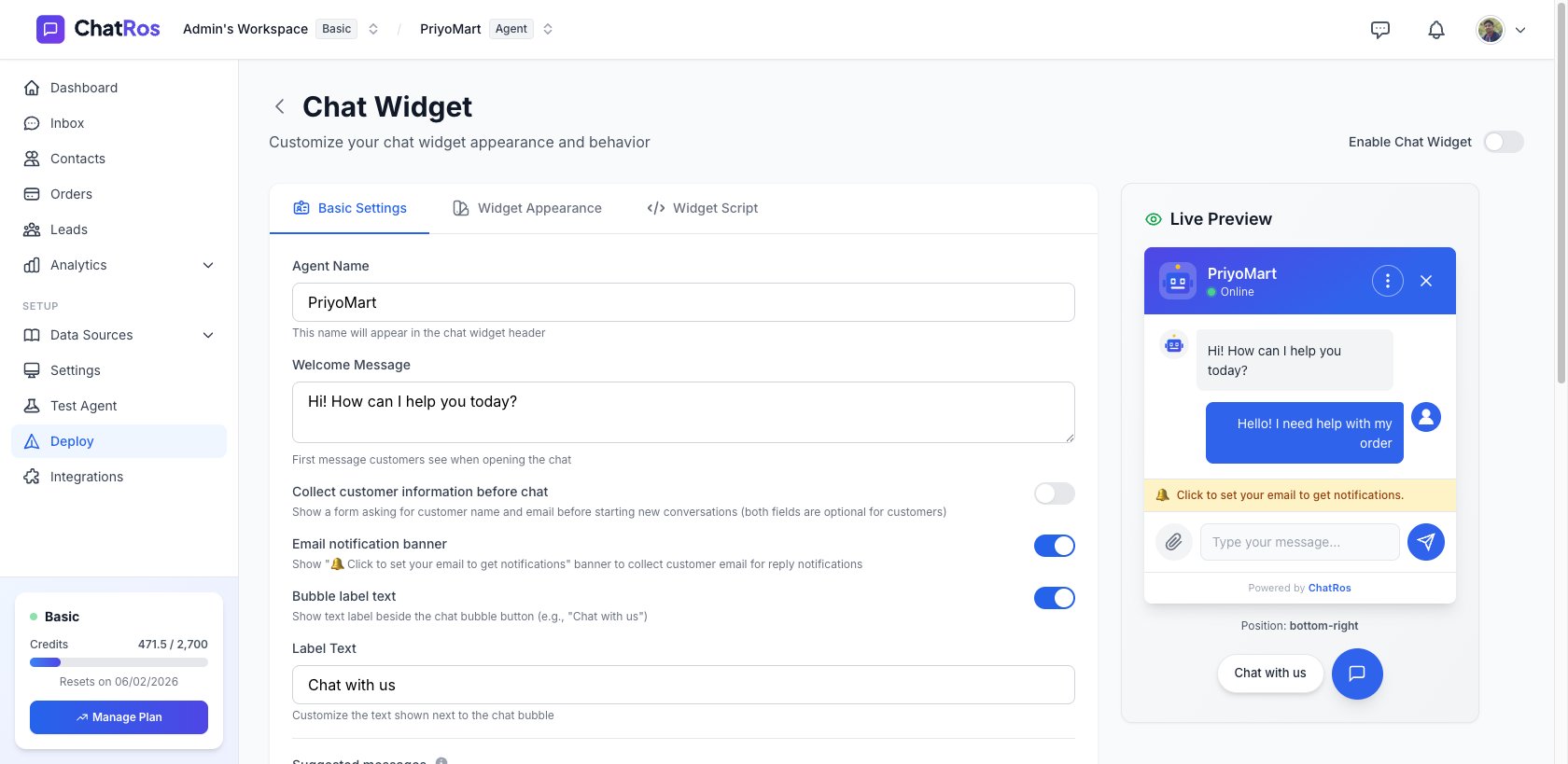
Configure the chat widget, with a live preview.
</body> tag, on every page where you want the widget. Save and publish, then reload your site — the chat bubble appears in the corner.
On Shopify or WooCommerce? You don’t paste code — install through the ChatRos app/plugin instead. See Shopify and WooCommerce.
🎉 Congratulations!
You’ve created, trained, tested, and deployed your first AI Agent. It’s now live and ready to help your visitors 24/7.What’s Next?
Monitor Performance
Track conversations and optimize your AI Agent’s performance
Deploy Everywhere
Connect your agent to WhatsApp, Messenger, Instagram, Telegram, and more
Best Practices
Learn proven strategies to maximize your AI Agent’s effectiveness
Product Catalog
Let your agent recommend products, prices, and variants from your catalog