

Step 1 — Open the widget settings
From your agent, go to Deploy → Chat widget → Configure Widget. The configuration screen has three tabs — Basic Settings, Widget Appearance, and Widget Script — with a Live Preview on the right that updates as you edit.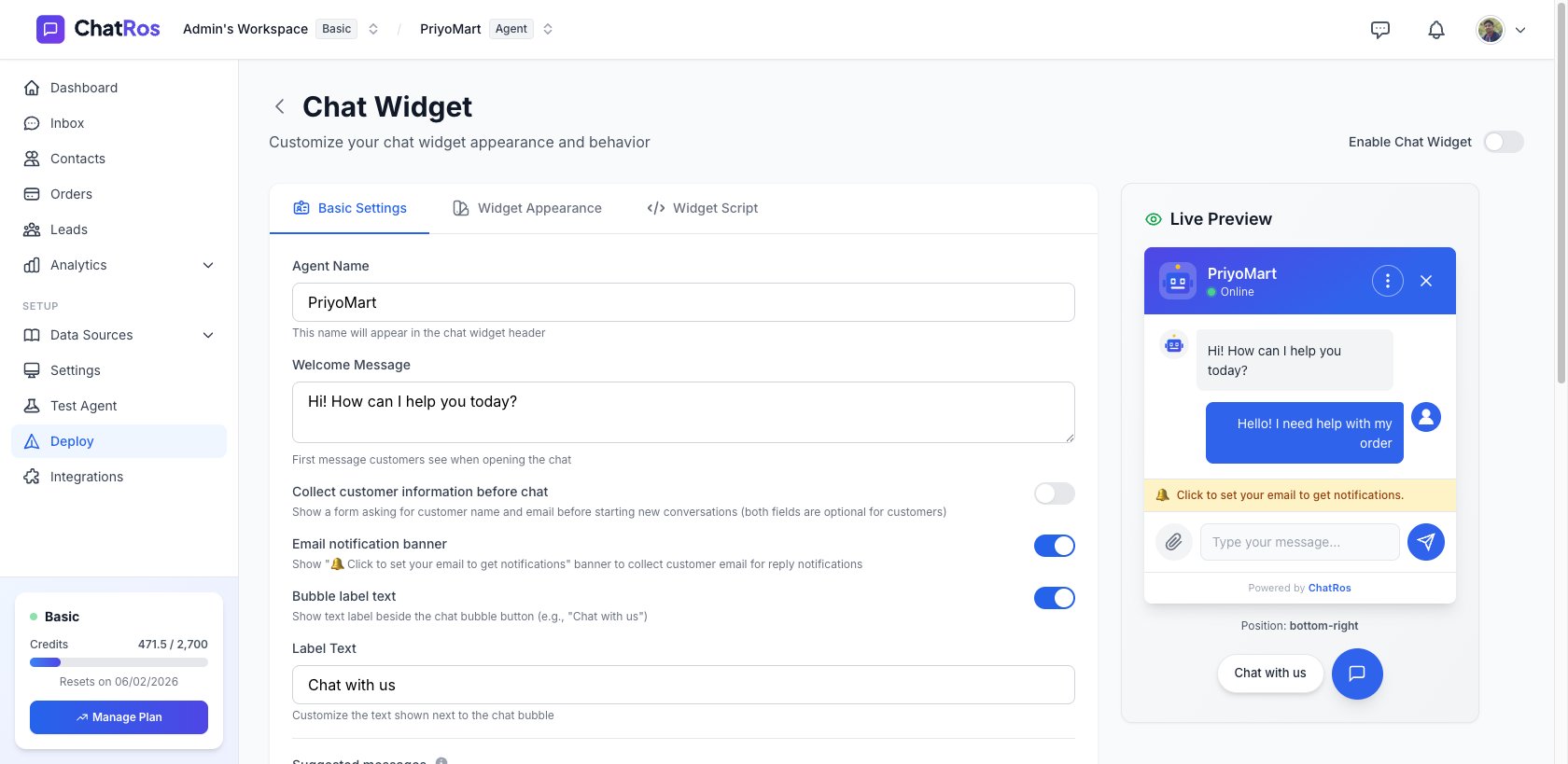
The Chat Widget configuration screen, with a live preview.
Step 2 — Set the basics
On the Basic Settings tab, set how the widget introduces itself:1
Agent name
The name shown in the widget header (e.g. Askie, Shop Assistant).
2
Welcome message
The first message visitors see, e.g. “Hi! How can I help you today?”
3
Suggested messages
Optional quick‑reply prompts that give visitors a starting point.
Step 3 — Customize the appearance
On the Widget Appearance tab, match the widget to your brand:- Position — Bottom Right, Bottom Left, Top Right, or Top Left.
- Primary color — brand color for buttons, headers, and accents (e.g.
#3063eb). - Theme — Light or Dark.
- Agent avatar — upload an image or paste an image URL (leave empty for the default).
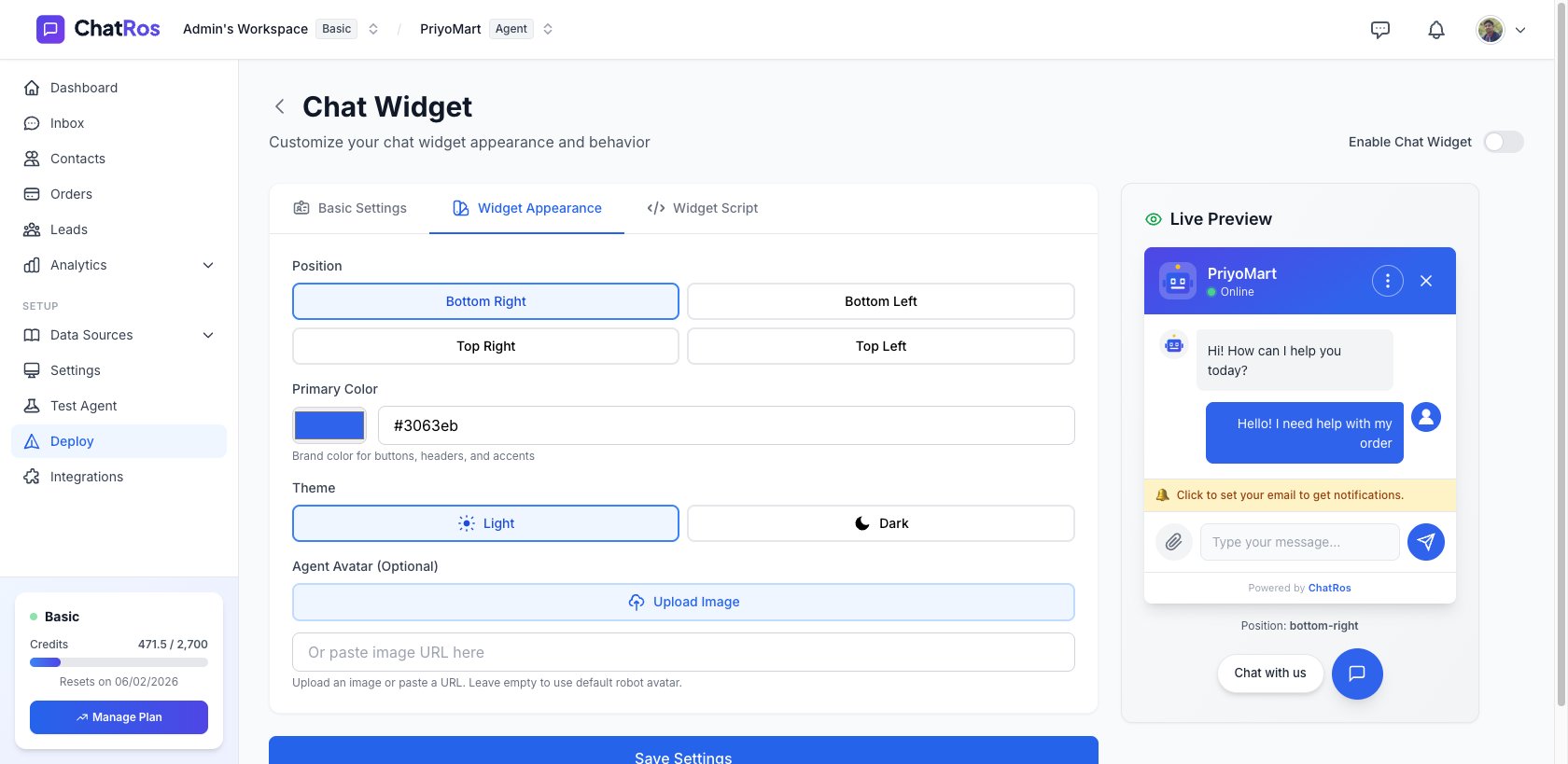
The Widget Appearance tab — position, color, theme, and avatar.
Step 4 — Install the snippet
Open the Widget Script tab and click Copy Code. You’ll get a snippet like this:</body> tag, on every page where you want the widget to appear. Your settings (name, colors, welcome message) are loaded automatically from ChatRos, so you never have to edit the snippet when you change them.
WordPress
WordPress
Add the snippet via your theme’s footer, a “custom HTML/scripts” setting, or a plugin like Insert Headers and Footers. Prefer the WooCommerce plugin if you also want live product and order lookups.
Shopify
Shopify
Don’t paste the script. Shopify stores install the widget through the ChatRos theme app embed instead — see the Shopify guide. Enable the ChatRos app embed in your theme editor and the widget appears automatically.
Any other site builder
Any other site builder
Most builders (Webflow, Wix, Squarespace, custom HTML) have a place to add custom code or an embed/HTML block. Paste the snippet there.
Step 5 — Restrict to your domains (optional)
In the widget settings you can list the domains the widget is allowed to load on (e.g.example.com, shop.example.com). This prevents the widget from being embedded on sites you don’t control.
Verify it works
Reload your website. The chat bubble should appear in the corner you chose. Send a test message — it will be answered by your agent and appear in your Inbox.📸 Screenshot: the live chat widget open on a website (to be added).
Add live product lookups
Running an online store? Connect Shopify or WooCommerce so the agent can answer product and order questions.