Bulk‑import your catalog from a CSV file, or sync it live from Shopify, WooCommerce, Medusa, or Google Sheets.
For anything larger than a handful of products, import in bulk. You have two options: a one‑time CSV import, or a live source sync that keeps your catalog up to date with your store or spreadsheet.
On Training → Catalog, click Import CSV and choose your file.
2
Map your columns
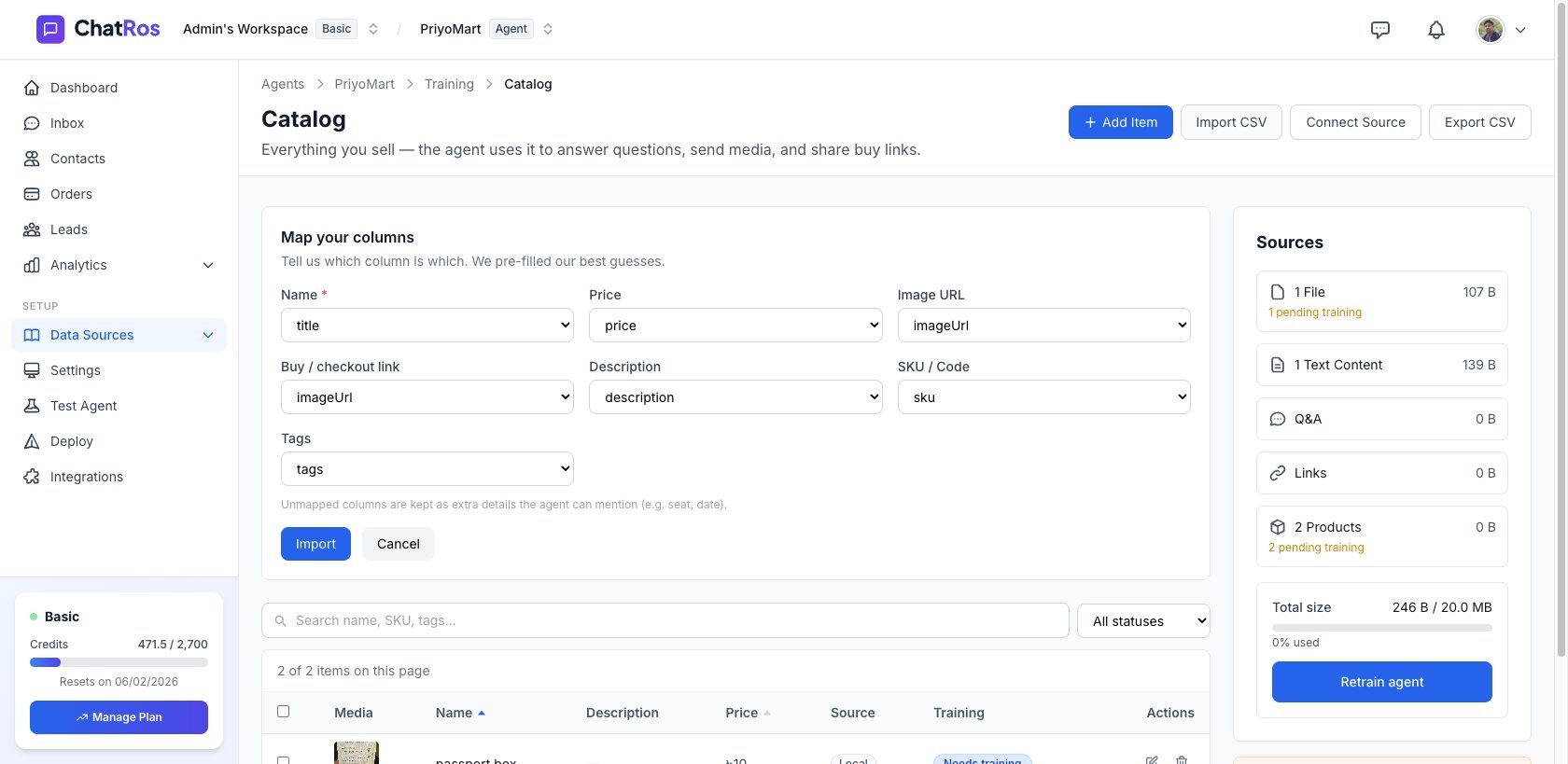
ChatRos previews the file and asks you to match your spreadsheet columns to catalog fields: title, description, price, sku, tags, url, imageUrl. Map each one, then click Import.
The “Map your columns” screen — ChatRos pre-fills its best guesses.
3
Wait for processing
You’ll see progress as ChatRos reads, uploads, and saves your products. When it’s done, they appear in the table and are queued for training.
Not sure of the format? Click Export CSV first to download a file with the exact columns ChatRos expects, fill it in, and re‑import.
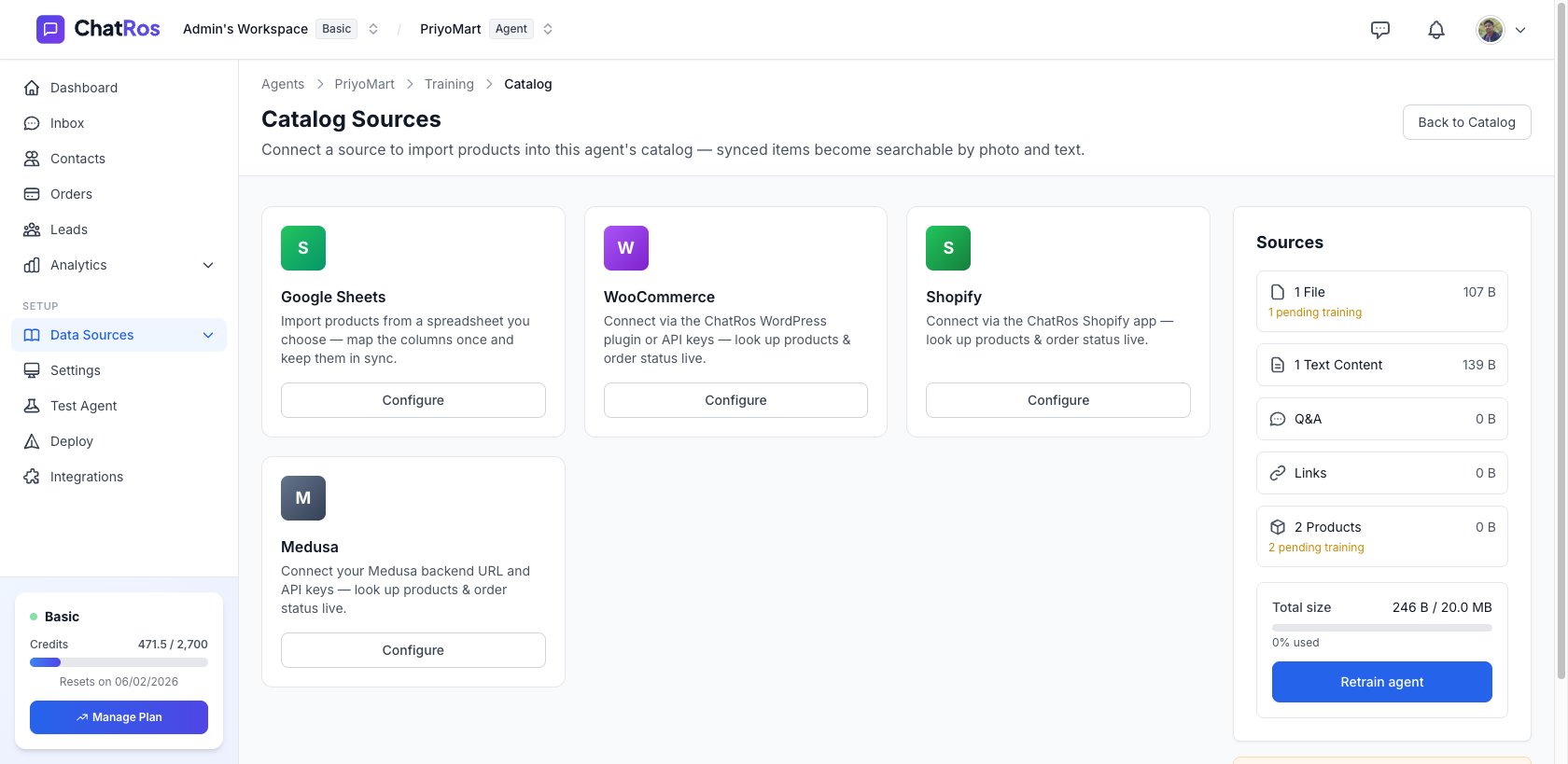
On the Catalog page, click Connect Source (if nothing is connected yet) or the settings gear next to Sync. This opens the Catalog Sources page.
The Catalog Sources page — connect Google Sheets, WooCommerce, Shopify, or Medusa.
2
Connect your store or spreadsheet
Pick a source and follow its connect flow. For stores, see the Shopify and WooCommerce guides. For Google Sheets, choose your spreadsheet and map the product columns once.
Back on the Catalog page, click Sync to pull the latest products from every connected source. ChatRos syncs the store first, then any connected spreadsheet, and re‑trains what changed.
Products carry a Source column so you can see whether each item was added manually, imported from CSV, or synced from a store/spreadsheet.
Set up image search
With products and images in place, let customers find items by sending a photo.
{"docsConfig":{"theme":"mint","$schema":"https://mintlify.com/docs.json","name":"ChatRos Documentation","colors":{"primary":"#4F46E5","light":"#7C3AED","dark":"#4338CA"},"logo":{"light":"https://mintcdn.com/softiustech/r0-Hu3fzPtGK9Luj/logo/light-large.svg?fit=max\u0026auto=format\u0026n=r0-Hu3fzPtGK9Luj\u0026q=85\u0026s=537b699737fcd81a760bbb8aed916e73","dark":"https://mintcdn.com/softiustech/r0-Hu3fzPtGK9Luj/logo/dark-large.svg?fit=max\u0026auto=format\u0026n=r0-Hu3fzPtGK9Luj\u0026q=85\u0026s=3aa14c4e4e4368d2939eafcc9de7b2ba"},"favicon":"https://mintcdn.com/softiustech/r0-Hu3fzPtGK9Luj/favicon.svg?fit=max\u0026auto=format\u0026n=r0-Hu3fzPtGK9Luj\u0026q=85\u0026s=29952df389fa814424675f3eb5699b5d","navbar":{"links":[{"href":"mailto:support@chatros.com","label":"Support"}],"primary":{"type":"button","label":"Dashboard","href":"https://chatros.com/dashboard"}},"footer":{"socials":{"x":"https://x.com/chatros","github":"https://github.com/chatros","linkedin":"https://linkedin.com/company/chatros"}},"contextual":{"options":["copy","view","chatgpt","claude","perplexity","mcp","cursor","vscode"],"display":"header"},"styling":{"latex":false},"navigation":{"global":{"anchors":[{"anchor":"Documentation","icon":"book-open-cover","href":"https://docs.chatros.com/"},{"anchor":"Dashboard","icon":"gauge","href":"https://chatros.com/dashboard"}]},"pages":[]}},"deployment":{"deploymentMetadataValue":{"subdomain":"softiustech","hasAudioNarration":false,"actualSubdomain":"softiustech","customDomains":["docs.chatros.com"],"gitSource":{"type":"github","owner":"ashraful1599","repo":"docs","deployBranch":"main","contentDirectory":"","isPrivate":false,"mountPath":"","label":""},"chroma":{"liveDeploymentHistoryId":"6a55fd5cc9c475dea5aea3ae","collectionId":"d17c53d8-6746-4def-a13d-02bed5f27c1f","schemaVersion":"v3"},"entitlements":{},"buildId":"6a55fd5cc9c475dea5aea3ae:success","clientVersion":"0.0.3971","searchFilterCounts":[{"language":"default","tag":"User Guides","count":22},{"language":"default","tag":"Deploy Your Agent","count":8},{"language":"default","tag":"AI Agent Management","count":4},{"language":"default","tag":"Product Catalog","count":4},{"language":"default","tag":"Integrations","count":3},{"language":"default","tag":"Quick Start","count":3},{"language":"default","tag":"Help \u0026 Support","count":1},{"language":"default","tag":"Support","count":1}]},"assistantConfig":{"enableAskAiButton":false,"enableStarterQuestions":false,"enableAskAiSearchBar":true},"basePath":"","hasChatPermissions":false,"hasWebMcpPermissions":false,"toggles":[{"name":"kill-isr","enabled":true,"variant":{"name":"disabled","enabled":false,"feature_enabled":true},"impressionData":false},{"name":"agent-mintlify-slack","enabled":true,"variant":{"name":"disabled","enabled":false,"feature_enabled":true},"impressionData":false},{"name":"editor-v7-file-tree","enabled":true,"variant":{"name":"disabled","enabled":false,"feature_enabled":true},"impressionData":false},{"name":"agent-integrations-settings","enabled":true,"variant":{"name":"disabled","enabled":false,"feature_enabled":true},"impressionData":false},{"name":"automations-pr-grouping","enabled":true,"variant":{"name":"disabled","enabled":false,"feature_enabled":true},"impressionData":false},{"name":"custom-prefix","enabled":true,"variant":{"name":"disabled","enabled":false,"feature_enabled":true},"impressionData":false},{"name":"analytics-v7","enabled":true,"variant":{"name":"disabled","enabled":false,"feature_enabled":true},"impressionData":false},{"name":"user-flows-analytics","enabled":true,"variant":{"name":"disabled","enabled":false,"feature_enabled":true},"impressionData":false},{"name":"no-publish-flow","enabled":true,"variant":{"name":"disabled","enabled":false,"feature_enabled":true},"impressionData":false},{"name":"workos-onboarding","enabled":true,"variant":{"name":"disabled","enabled":false,"feature_enabled":true},"impressionData":false},{"name":"llms-txt-v2","enabled":true,"variant":{"name":"disabled","enabled":false,"feature_enabled":true},"impressionData":false},{"name":"pause-universal-search-reconcile","enabled":true,"variant":{"name":"disabled","enabled":false,"feature_enabled":true},"impressionData":false},{"name":"snapshot-serving-live","enabled":true,"variant":{"name":"disabled","enabled":false,"feature_enabled":true},"impressionData":false},{"name":"stripTemperatureMiddleware","enabled":true,"variant":{"name":"disabled","enabled":false,"feature_enabled":true},"impressionData":false},{"name":"per-site-search-delta","enabled":true,"variant":{"name":"disabled","enabled":false,"feature_enabled":true},"impressionData":false},{"name":"support-platform-pylon-zendesk","enabled":true,"variant":{"name":"disabled","enabled":false,"feature_enabled":true},"impressionData":false},{"name":"snapshot-serving","enabled":true,"variant":{"name":"disabled","enabled":false,"feature_enabled":true},"impressionData":false},{"name":"instant-rollback","enabled":true,"variant":{"name":"disabled","enabled":false,"feature_enabled":true},"impressionData":false},{"name":"granular-notifications-server","enabled":true,"variant":{"name":"disabled","enabled":false,"feature_enabled":true},"impressionData":false},{"name":"granular-notifications","enabled":true,"variant":{"name":"disabled","enabled":false,"feature_enabled":true},"impressionData":false},{"name":"editor-private-page-search","enabled":true,"variant":{"name":"disabled","enabled":false,"feature_enabled":true},"impressionData":false},{"name":"automations-fable","enabled":true,"variant":{"name":"disabled","enabled":false,"feature_enabled":true},"impressionData":false},{"name":"fixed-ai-action-pricing","enabled":true,"variant":{"name":"disabled","enabled":false,"feature_enabled":true},"impressionData":false},{"name":"automation-resolve-merge-conflict","enabled":true,"variant":{"name":"disabled","enabled":false,"feature_enabled":true},"impressionData":false},{"name":"scoped-publishing","enabled":true,"variant":{"name":"disabled","enabled":false,"feature_enabled":true},"impressionData":false},{"name":"mintql","enabled":true,"variant":{"name":"disabled","enabled":false,"feature_enabled":true},"impressionData":false},{"name":"page-level-analytics","enabled":true,"variant":{"name":"disabled","enabled":false,"feature_enabled":true},"impressionData":false},{"name":"editor-version-history-v2","enabled":true,"variant":{"name":"disabled","enabled":false,"feature_enabled":true},"impressionData":false},{"name":"editor-nav-generations","enabled":true,"variant":{"name":"disabled","enabled":false,"feature_enabled":true},"impressionData":false},{"name":"billing-page-v2","enabled":true,"variant":{"name":"disabled","enabled":false,"feature_enabled":true},"impressionData":false},{"name":"workspace-projects","enabled":true,"variant":{"name":"disabled","enabled":false,"feature_enabled":true},"impressionData":false},{"name":"assistant-v5","enabled":true,"variant":{"name":"disabled","enabled":false,"feature_enabled":true},"impressionData":false},{"name":"byok-sep-25","enabled":true,"variant":{"name":"disabled","enabled":false,"feature_enabled":true},"impressionData":false},{"name":"fork-pr-previews","enabled":true,"variant":{"name":"disabled","enabled":false,"feature_enabled":true},"impressionData":false},{"name":"revalidation-jwt","enabled":true,"variant":{"name":"disabled","enabled":false,"feature_enabled":true},"impressionData":false},{"name":"vite-origin","enabled":true,"variant":{"name":"disabled","enabled":false,"feature_enabled":true},"impressionData":false},{"name":"editor-agent-model-picker","enabled":true,"variant":{"name":"disabled","enabled":false,"feature_enabled":true},"impressionData":false},{"name":"billing-updated-9-15","enabled":true,"variant":{"name":"disabled","enabled":false,"feature_enabled":true},"impressionData":false},{"name":"workos-sso-scim","enabled":true,"variant":{"name":"disabled","enabled":false,"feature_enabled":true},"impressionData":false},{"name":"hobby-abuse-scan","enabled":true,"variant":{"name":"disabled","enabled":false,"feature_enabled":true},"impressionData":false},{"name":"dashboard-inbox","enabled":true,"variant":{"name":"disabled","enabled":false,"feature_enabled":true},"impressionData":false},{"name":"workos-signup","enabled":true,"variant":{"name":"disabled","enabled":false,"feature_enabled":true},"impressionData":false},{"name":"workos-enabled","enabled":true,"variant":{"name":"disabled","enabled":false,"feature_enabled":true},"impressionData":false}],"isAtlas":false,"googleFontsInlined":false},"customCss":[{"filePath":"styles.css","content":".nav-logo{height:3.5rem!important;max-height:3.5rem!important}"}],"page":{"pagePath":"user-guides/catalog/importing","slug":"/user-guides/catalog/importing","pageMetadata":{"title":"Importing Products","description":"Bulk‑import your catalog from a CSV file, or sync it live from Shopify, WooCommerce, Medusa, or Google Sheets.","href":"/user-guides/catalog/importing"},"description":{"compiledSource":"\"use strict\";\nconst {jsx: _jsx} = arguments[0];\nconst {useMDXComponents: _provideComponents} = arguments[0];\nfunction _createMdxContent(props) {\n const _components = {\n p: \"p\",\n ..._provideComponents(),\n ...props.components\n };\n return _jsx(_components.p, {\n children: \"Bulk‑import your catalog from a CSV file, or sync it live from Shopify, WooCommerce, Medusa, or Google Sheets.\"\n });\n}\nfunction MDXContent(props = {}) {\n const {wrapper: MDXLayout} = {\n ..._provideComponents(),\n ...props.components\n };\n return MDXLayout ? _jsx(MDXLayout, {\n ...props,\n children: _jsx(_createMdxContent, {\n ...props\n })\n }) : _createMdxContent(props);\n}\nreturn {\n default: MDXContent\n};\n","frontmatter":{},"scope":{}},"pageType":"default","mdx":{"mdxSource":{"compiledSource":"\"use strict\";const{Fragment:_Fragment,jsx:_jsx,jsxs:_jsxs}=arguments[0];const{useMDXComponents:_provideComponents}=arguments[0];function _createMdxContent(props){const _components={a:`a`,p:`p`,strong:`strong`,..._provideComponents(),...props.components},{Card,CardGroup,Frame,Heading,Note,OptimizedImage,Step,Steps,Tip}=_components;if(!Card)_missingMdxReference(`Card`,true);if(!CardGroup)_missingMdxReference(`CardGroup`,true);if(!Frame)_missingMdxReference(`Frame`,true);if(!Heading)_missingMdxReference(`Heading`,true);if(!Note)_missingMdxReference(`Note`,true);if(!OptimizedImage)_missingMdxReference(`OptimizedImage`,true);if(!Step)_missingMdxReference(`Step`,true);if(!Steps)_missingMdxReference(`Steps`,true);if(!Tip)_missingMdxReference(`Tip`,true);return _jsxs(_Fragment,{children:[_jsxs(_components.p,{children:[`For anything larger than a handful of products, import in bulk. You have two options: a one‑time `,_jsx(_components.strong,{children:`CSV import`}),`, or a live `,_jsx(_components.strong,{children:`source sync`}),` that keeps your catalog up to date with your store or spreadsheet.`]}),`\n`,_jsx(Heading,{level:`2`,id:`option-a-—-import-a-csv`,children:`Option A — Import a CSV`}),`\n`,_jsxs(Steps,{children:[_jsx(Step,{title:`Click “Import CSV”`,children:_jsxs(_components.p,{children:[`On `,_jsx(_components.strong,{children:`Training → Catalog`}),`, click `,_jsx(_components.strong,{children:`Import CSV`}),` and choose your file.`]})}),_jsxs(Step,{title:`Map your columns`,children:[_jsxs(_components.p,{children:[`ChatRos previews the file and asks you to match your spreadsheet columns to catalog fields: `,_jsx(_components.strong,{children:`title, description, price, sku, tags, url, imageUrl`}),`. Map each one, then click `,_jsx(_components.strong,{children:`Import`}),`.`]}),_jsx(Frame,{caption:`The “Map your columns” screen — ChatRos pre-fills its best guesses.`,children:_jsx(OptimizedImage,{src:`https://mintcdn.com/softiustech/r0-Hu3fzPtGK9Luj/images/user-guides/catalog/csv-mapping.png?fit=max\u0026auto=format\u0026n=r0-Hu3fzPtGK9Luj\u0026q=85\u0026s=36803cdeaa70011396574d3956692013`,alt:`Map your columns screen matching CSV columns to catalog fields`,\"data-og-width\":`1680`,width:`1680`,\"data-og-height\":`819`,height:`819`,\"data-path\":`images/user-guides/catalog/csv-mapping.png`,\"data-optimize\":`true`,\"data-opv\":`3`,srcset:`https://mintcdn.com/softiustech/r0-Hu3fzPtGK9Luj/images/user-guides/catalog/csv-mapping.png?w=280\u0026fit=max\u0026auto=format\u0026n=r0-Hu3fzPtGK9Luj\u0026q=85\u0026s=6d3636069936e5746e0a19eee365db1e 280w, https://mintcdn.com/softiustech/r0-Hu3fzPtGK9Luj/images/user-guides/catalog/csv-mapping.png?w=560\u0026fit=max\u0026auto=format\u0026n=r0-Hu3fzPtGK9Luj\u0026q=85\u0026s=63529c0ec4e5e6fcd2e2fc91eee2cfde 560w, https://mintcdn.com/softiustech/r0-Hu3fzPtGK9Luj/images/user-guides/catalog/csv-mapping.png?w=840\u0026fit=max\u0026auto=format\u0026n=r0-Hu3fzPtGK9Luj\u0026q=85\u0026s=841f9a2afffb3aad3c1c2e1fda9bb461 840w, https://mintcdn.com/softiustech/r0-Hu3fzPtGK9Luj/images/user-guides/catalog/csv-mapping.png?w=1100\u0026fit=max\u0026auto=format\u0026n=r0-Hu3fzPtGK9Luj\u0026q=85\u0026s=ea0fb426aeb94008b553b5c3838b1610 1100w, https://mintcdn.com/softiustech/r0-Hu3fzPtGK9Luj/images/user-guides/catalog/csv-mapping.png?w=1650\u0026fit=max\u0026auto=format\u0026n=r0-Hu3fzPtGK9Luj\u0026q=85\u0026s=3fe17c0de2a5034c6733a7db2bb12e55 1650w, https://mintcdn.com/softiustech/r0-Hu3fzPtGK9Luj/images/user-guides/catalog/csv-mapping.png?w=2500\u0026fit=max\u0026auto=format\u0026n=r0-Hu3fzPtGK9Luj\u0026q=85\u0026s=edd0ffd2b91cc761e2af04c90494ab86 2500w`})})]}),_jsx(Step,{title:`Wait for processing`,children:_jsx(_components.p,{children:`You’ll see progress as ChatRos reads, uploads, and saves your products. When it’s done, they appear in the table and are queued for training.`})})]}),`\n`,_jsx(Tip,{children:_jsxs(_components.p,{children:[`Not sure of the format? Click `,_jsx(_components.strong,{children:`Export CSV`}),` first to download a file with the exact columns ChatRos expects, fill it in, and re‑import.`]})}),`\n`,_jsx(Heading,{level:`2`,id:`option-b-—-sync-from-a-live-source`,children:`Option B — Sync from a live source`}),`\n`,_jsx(_components.p,{children:`Connect a source once and pull products automatically — and re‑sync whenever your store changes. Supported sources:`}),`\n`,_jsxs(CardGroup,{cols:2,children:[_jsx(Card,{title:`Shopify`,icon:`shopify`,children:_jsx(_components.p,{children:`Products and variants from your Shopify store.`})}),_jsx(Card,{title:`WooCommerce`,icon:`wordpress`,children:_jsx(_components.p,{children:`Products from your WooCommerce store via the ChatRos plugin.`})}),_jsx(Card,{title:`Medusa`,icon:`cart-shopping`,children:_jsx(_components.p,{children:`Products from your Medusa backend.`})}),_jsx(Card,{title:`Google Sheets`,icon:`table`,children:_jsx(_components.p,{children:`Products from a spreadsheet you choose — map the columns once and keep them in sync.`})})]}),`\n`,_jsx(Heading,{level:`3`,id:`connect-a-source`,children:`Connect a source`}),`\n`,_jsxs(Steps,{children:[_jsxs(Step,{title:`Open Catalog Sources`,children:[_jsxs(_components.p,{children:[`On the Catalog page, click `,_jsx(_components.strong,{children:`Connect Source`}),` (if nothing is connected yet) or the settings gear next to `,_jsx(_components.strong,{children:`Sync`}),`. This opens the `,_jsx(_components.strong,{children:`Catalog Sources`}),` page.`]}),_jsx(Frame,{caption:`The Catalog Sources page — connect Google Sheets, WooCommerce, Shopify, or Medusa.`,children:_jsx(OptimizedImage,{src:`https://mintcdn.com/softiustech/r0-Hu3fzPtGK9Luj/images/user-guides/catalog/sources.png?fit=max\u0026auto=format\u0026n=r0-Hu3fzPtGK9Luj\u0026q=85\u0026s=9363e5d97c53b0ddf91f46b78cdb7e43`,alt:`Catalog Sources page with Google Sheets, WooCommerce, Shopify, and Medusa cards`,\"data-og-width\":`1680`,width:`1680`,\"data-og-height\":`819`,height:`819`,\"data-path\":`images/user-guides/catalog/sources.png`,\"data-optimize\":`true`,\"data-opv\":`3`,srcset:`https://mintcdn.com/softiustech/r0-Hu3fzPtGK9Luj/images/user-guides/catalog/sources.png?w=280\u0026fit=max\u0026auto=format\u0026n=r0-Hu3fzPtGK9Luj\u0026q=85\u0026s=ba667b2bce6fe4805d2fa94acdee0c03 280w, https://mintcdn.com/softiustech/r0-Hu3fzPtGK9Luj/images/user-guides/catalog/sources.png?w=560\u0026fit=max\u0026auto=format\u0026n=r0-Hu3fzPtGK9Luj\u0026q=85\u0026s=913e39fb9a214b2d97df67e67303c6c7 560w, https://mintcdn.com/softiustech/r0-Hu3fzPtGK9Luj/images/user-guides/catalog/sources.png?w=840\u0026fit=max\u0026auto=format\u0026n=r0-Hu3fzPtGK9Luj\u0026q=85\u0026s=5a02407c753272db810c5e0afead38be 840w, https://mintcdn.com/softiustech/r0-Hu3fzPtGK9Luj/images/user-guides/catalog/sources.png?w=1100\u0026fit=max\u0026auto=format\u0026n=r0-Hu3fzPtGK9Luj\u0026q=85\u0026s=95ed7e2ca86232eb6a5a0a4542934892 1100w, https://mintcdn.com/softiustech/r0-Hu3fzPtGK9Luj/images/user-guides/catalog/sources.png?w=1650\u0026fit=max\u0026auto=format\u0026n=r0-Hu3fzPtGK9Luj\u0026q=85\u0026s=800f9fc00992ddfcacca35428329388a 1650w, https://mintcdn.com/softiustech/r0-Hu3fzPtGK9Luj/images/user-guides/catalog/sources.png?w=2500\u0026fit=max\u0026auto=format\u0026n=r0-Hu3fzPtGK9Luj\u0026q=85\u0026s=e8a200b6df5a428deb3aee7802d3cd0f 2500w`})})]}),_jsx(Step,{title:`Connect your store or spreadsheet`,children:_jsxs(_components.p,{children:[`Pick a source and follow its connect flow. For stores, see the `,_jsx(_components.a,{href:`/user-guides/deploy/shopify`,children:`Shopify`}),` and `,_jsx(_components.a,{href:`/user-guides/deploy/woocommerce`,children:`WooCommerce`}),` guides. For `,_jsx(_components.strong,{children:`Google Sheets`}),`, choose your spreadsheet and map the product columns once.`]})})]}),`\n`,_jsx(Heading,{level:`3`,id:`sync`,children:`Sync`}),`\n`,_jsxs(_components.p,{children:[`Back on the Catalog page, click `,_jsx(_components.strong,{children:`Sync`}),` to pull the latest products from every connected source. ChatRos syncs the store first, then any connected spreadsheet, and re‑trains what changed.`]}),`\n`,_jsx(Note,{children:_jsxs(_components.p,{children:[`Products carry a `,_jsx(_components.strong,{children:`Source`}),` column so you can see whether each item was added manually, imported from CSV, or synced from a store/spreadsheet.`]})}),`\n`,_jsx(Card,{title:`Set up image search`,icon:`image`,href:`/user-guides/catalog/image-search`,children:_jsx(_components.p,{children:`With products and images in place, let customers find items by sending a photo.`})})]})}function MDXContent(props={}){const{wrapper:MDXLayout}={..._provideComponents(),...props.components};return MDXLayout?_jsx(MDXLayout,{...props,children:_jsx(_createMdxContent,{...props})}):_createMdxContent(props)}return{default:MDXContent};function _missingMdxReference(id,component){throw new Error(`Expected `+(component?`component`:`object`)+\" `\"+id+\"` to be defined: you likely forgot to import, pass, or provide it.\")}","frontmatter":{},"scope":{"config":{},"pageMetadata":{"title":"Importing Products","description":"Bulk‑import your catalog from a CSV file, or sync it live from Shopify, WooCommerce, Medusa, or Google Sheets.","href":"/user-guides/catalog/importing"}}},"mdxSourceWithNoJs":null},"mdxExtracts":{"tableOfContents":[{"title":"Option A — Import a CSV","slug":"option-a-—-import-a-csv","depth":2,"children":[]},{"title":"Option B — Sync from a live source","slug":"option-b-—-sync-from-a-live-source","depth":2,"children":[{"title":"Connect a source","slug":"connect-a-source","depth":3,"children":[]},{"title":"Sync","slug":"sync","depth":3,"children":[]}]}],"codeExamples":{}},"jsLinks":[],"subdomain":"softiustech","siteName":"ChatRos Documentation","title":"Importing Products - ChatRos Documentation","navMaps":{"firstHrefInVersion":{},"firstHrefInLanguage":{}},"lastModified":"2026-07-14T08:27:06.973Z","originalFileLocation":"user-guides/catalog/importing.mdx"},"headHtml":"\u003cscript data-mint-head>(function(){var d=document.documentElement,p=null;if(!p){try{p=localStorage.getItem(\"isDarkMode\")}catch(e){}if(p==='true')p='dark';else if(p==='false')p='light';if(p!=='light'\u0026\u0026p!=='dark'\u0026\u0026p!=='system')p=\"system\"}var r=p==='system'?(matchMedia(\"(prefers-color-scheme: dark)\").matches?'dark':'light'):p;d.classList.remove(r==='dark'?'light':'dark');d.classList.add(r);d.setAttribute(\"data-theme-preference\",p)})();\u003c/script>\u003cmeta data-mint-head name=\"description\" content=\"Bulk‑import your catalog from a CSV file, or sync it live from Shopify, WooCommerce, Medusa, or Google Sheets.\">\u003cmeta data-mint-head name=\"application-name\" content=\"ChatRos Documentation\">\u003cmeta data-mint-head name=\"generator\" content=\"Mintlify\">\u003clink data-mint-head rel=\"icon\" type=\"image/png\" sizes=\"192x192\" href=\"/mintlify-assets/_mintlify/favicons/softiustech/EvHND5P9HB0YlKWb/_generated/favicon/android-chrome-192x192.png\" media=\"(prefers-color-scheme: light)\">\u003clink data-mint-head rel=\"apple-touch-icon\" type=\"image/png\" sizes=\"180x180\" href=\"/mintlify-assets/_mintlify/favicons/softiustech/EvHND5P9HB0YlKWb/_generated/favicon/apple-touch-icon.png\">\u003clink data-mint-head rel=\"icon\" type=\"image/png\" sizes=\"16x16\" href=\"/mintlify-assets/_mintlify/favicons/softiustech/EvHND5P9HB0YlKWb/_generated/favicon/favicon-16x16.png\" media=\"(prefers-color-scheme: light)\">\u003clink data-mint-head rel=\"icon\" type=\"image/png\" sizes=\"32x32\" href=\"/mintlify-assets/_mintlify/favicons/softiustech/EvHND5P9HB0YlKWb/_generated/favicon/favicon-32x32.png\" media=\"(prefers-color-scheme: light)\">\u003clink data-mint-head rel=\"shortcut icon\" type=\"image/x-icon\" href=\"/mintlify-assets/_mintlify/favicons/softiustech/EvHND5P9HB0YlKWb/_generated/favicon/favicon.ico\" media=\"(prefers-color-scheme: light)\">\u003clink data-mint-head rel=\"icon\" type=\"image/png\" sizes=\"192x192\" href=\"/mintlify-assets/_mintlify/favicons/softiustech/EvHND5P9HB0YlKWb/_generated/favicon-dark/android-chrome-192x192.png\" media=\"(prefers-color-scheme: dark)\">\u003clink data-mint-head rel=\"icon\" type=\"image/png\" sizes=\"16x16\" href=\"/mintlify-assets/_mintlify/favicons/softiustech/EvHND5P9HB0YlKWb/_generated/favicon-dark/favicon-16x16.png\" media=\"(prefers-color-scheme: dark)\">\u003clink data-mint-head rel=\"icon\" type=\"image/png\" sizes=\"32x32\" href=\"/mintlify-assets/_mintlify/favicons/softiustech/EvHND5P9HB0YlKWb/_generated/favicon-dark/favicon-32x32.png\" media=\"(prefers-color-scheme: dark)\">\u003clink data-mint-head rel=\"shortcut icon\" type=\"image/x-icon\" href=\"/mintlify-assets/_mintlify/favicons/softiustech/EvHND5P9HB0YlKWb/_generated/favicon-dark/favicon.ico\" media=\"(prefers-color-scheme: dark)\">\u003cmeta data-mint-head property=\"og:title\" content=\"Importing Products - ChatRos Documentation\">\u003cmeta data-mint-head property=\"og:description\" content=\"Bulk‑import your catalog from a CSV file, or sync it live from Shopify, WooCommerce, Medusa, or Google Sheets.\">\u003cmeta data-mint-head property=\"og:site_name\" content=\"ChatRos Documentation\">\u003cmeta data-mint-head property=\"og:url\" content=\"https://docs.chatros.com/user-guides/catalog/importing\">\u003cmeta data-mint-head property=\"og:type\" content=\"website\">\u003cmeta data-mint-head property=\"og:image\" content=\"https://softiustech.mintlify.app/_mintlify/api/og/v2?division=Product+Catalog\u0026amp;title=Importing+Products\u0026amp;description=Bulk%E2%80%91import+your+catalog+from+a+CSV+file%2C+or+sync+it+live+from+Shopify%2C+WooCommerce%2C+Medusa%2C+or+Google+Sheets.\u0026amp;theme=9b6ad218cbde2a744be87e8f\u0026amp;signature=84bf525eac62621ae849238f17544e2e7efe5e7ccf111009b49be6880d54e92c\">\u003cmeta data-mint-head property=\"og:image:width\" content=\"1200\">\u003cmeta data-mint-head property=\"og:image:height\" content=\"630\">\u003cmeta data-mint-head name=\"twitter:card\" content=\"summary_large_image\">\u003cmeta data-mint-head name=\"twitter:title\" content=\"Importing Products - ChatRos Documentation\">\u003cmeta data-mint-head name=\"twitter:description\" content=\"Bulk‑import your catalog from a CSV file, or sync it live from Shopify, WooCommerce, Medusa, or Google Sheets.\">\u003cmeta data-mint-head name=\"twitter:image\" content=\"https://softiustech.mintlify.app/_mintlify/api/og/v2?division=Product+Catalog\u0026amp;title=Importing+Products\u0026amp;description=Bulk%E2%80%91import+your+catalog+from+a+CSV+file%2C+or+sync+it+live+from+Shopify%2C+WooCommerce%2C+Medusa%2C+or+Google+Sheets.\u0026amp;theme=9b6ad218cbde2a744be87e8f\u0026amp;signature=84bf525eac62621ae849238f17544e2e7efe5e7ccf111009b49be6880d54e92c\">\u003cmeta data-mint-head name=\"twitter:image:width\" content=\"1200\">\u003cmeta data-mint-head name=\"twitter:image:height\" content=\"630\">\u003cmeta data-mint-head name=\"msapplication-config\" content=\"/mintlify-assets/_mintlify/favicons/softiustech/EvHND5P9HB0YlKWb/_generated/favicon/browserconfig.xml\">\u003cmeta data-mint-head name=\"apple-mobile-web-app-title\" content=\"ChatRos Documentation\">\u003cmeta data-mint-head name=\"msapplication-TileColor\" content=\"#4F46E5\">\u003clink data-mint-head rel=\"canonical\" href=\"https://docs.chatros.com/user-guides/catalog/importing\">\u003clink data-mint-head rel=\"alternate\" type=\"application/xml\" href=\"/sitemap.xml\">\u003clink data-mint-head rel=\"alternate\" type=\"text/markdown\" href=\"/user-guides/catalog/importing.md\">\u003cscript data-mint-head type=\"application/ld+json\">{\"@context\":\"https://schema.org\",\"@graph\":[{\"@type\":\"Organization\",\"@id\":\"https://docs.chatros.com/#organization\",\"name\":\"ChatRos Documentation\",\"url\":\"https://docs.chatros.com\",\"logo\":{\"@type\":\"ImageObject\",\"url\":\"https://mintcdn.com/softiustech/r0-Hu3fzPtGK9Luj/logo/light-large.svg?fit=max\u0026auto=format\u0026n=r0-Hu3fzPtGK9Luj\u0026q=85\u0026s=537b699737fcd81a760bbb8aed916e73\"}},{\"@type\":\"WebSite\",\"@id\":\"https://docs.chatros.com#website\",\"name\":\"ChatRos Documentation\",\"url\":\"https://docs.chatros.com\",\"publisher\":{\"@id\":\"https://docs.chatros.com/#organization\"}},{\"@type\":\"WebPage\",\"@id\":\"https://docs.chatros.com/user-guides/catalog/importing#webpage\",\"url\":\"https://docs.chatros.com/user-guides/catalog/importing\",\"name\":\"Importing Products\",\"description\":\"Bulk‑import your catalog from a CSV file, or sync it live from Shopify, WooCommerce, Medusa, or Google Sheets.\",\"dateModified\":\"2026-07-14T08:27:06.973Z\",\"isPartOf\":{\"@id\":\"https://docs.chatros.com#website\"},\"breadcrumb\":{\"@id\":\"https://docs.chatros.com/user-guides/catalog/importing#breadcrumb\"}},{\"@type\":\"BreadcrumbList\",\"@id\":\"https://docs.chatros.com/user-guides/catalog/importing#breadcrumb\",\"itemListElement\":[{\"@type\":\"ListItem\",\"position\":1,\"name\":\"Product Catalog\",\"item\":\"https://docs.chatros.com/user-guides/catalog/introduction\"},{\"@type\":\"ListItem\",\"position\":2,\"name\":\"Importing Products\",\"item\":\"https://docs.chatros.com/user-guides/catalog/importing\"}]},{\"@type\":[\"Article\",\"TechArticle\"],\"@id\":\"https://docs.chatros.com/user-guides/catalog/importing#article\",\"headline\":\"Importing Products\",\"name\":\"Importing Products\",\"description\":\"Bulk‑import your catalog from a CSV file, or sync it live from Shopify, WooCommerce, Medusa, or Google Sheets.\",\"url\":\"https://docs.chatros.com/user-guides/catalog/importing\",\"mainEntityOfPage\":{\"@id\":\"https://docs.chatros.com/user-guides/catalog/importing#webpage\"},\"dateModified\":\"2026-07-14T08:27:06.973Z\",\"publisher\":{\"@id\":\"https://docs.chatros.com/#organization\"},\"isPartOf\":{\"@id\":\"https://docs.chatros.com#website\"}}]}\u003c/script>\u003cscript data-mint-head type=\"application/ld+json\">{\"@context\":\"https://schema.org\",\"@type\":\"WebSite\",\"name\":\"ChatRos Documentation\",\"creator\":{\"@type\":\"Organization\",\"name\":\"Mintlify\",\"url\":\"https://mintlify.com\"}}\u003c/script>","siteName":"ChatRos Documentation","nav":{"global":{"anchors":[{"anchor":"Documentation","icon":"book-open-cover","href":"https://docs.chatros.com/"},{"anchor":"Dashboard","icon":"gauge","href":"https://chatros.com/dashboard"}]},"tabs":[{"tab":"User Guides","groups":[{"group":"Quick Start","pages":[{"title":"Welcome to ChatRos","href":"/user-guides/quick-start/introduction"},{"title":"Build Your First AI Agent","href":"/user-guides/quick-start/your-first-agent"},{"title":"Best Practices","href":"/user-guides/quick-start/best-practices"}]},{"group":"AI Agent Management","pages":[{"title":"Sources","href":"/user-guides/agent/sources"},{"title":"Settings","href":"/user-guides/agent/settings"},{"title":"Activity","href":"/user-guides/agent/activity"},{"title":"Analytics","href":"/user-guides/agent/analytics"}]},{"group":"Deploy Your Agent","pages":[{"title":"Deploy Your Agent","href":"/user-guides/deploy/introduction"},{"title":"Chat Widget","href":"/user-guides/deploy/chat-widget"},{"title":"WhatsApp","href":"/user-guides/deploy/whatsapp"},{"title":"Messenger","href":"/user-guides/deploy/messenger"},{"title":"Instagram","href":"/user-guides/deploy/instagram"},{"title":"Telegram","href":"/user-guides/deploy/telegram"},{"title":"Shopify","href":"/user-guides/deploy/shopify"},{"title":"WooCommerce","href":"/user-guides/deploy/woocommerce"}]},{"group":"Product Catalog","pages":[{"title":"Product Catalog","href":"/user-guides/catalog/introduction"},{"title":"Adding Products \u0026 Variants","description":"Add products to your catalog by hand, with images, prices, SKUs, tags, and variants.","href":"/user-guides/catalog/products-and-variants"},{"title":"Importing Products","href":"/user-guides/catalog/importing"},{"title":"Image Product Search","description":"Let customers send a photo and have your agent find the matching product from your catalog.","href":"/user-guides/catalog/image-search"}]},{"group":"Integrations","pages":[{"title":"Klaviyo Integration","href":"/user-guides/integrations/klaviyo"},{"title":"Mailchimp Integration","href":"/user-guides/integrations/mailchimp"},{"title":"MailerLite Integration","href":"/user-guides/integrations/mailerlite"}]}]},{"tab":"Help \u0026 Support","pages":[{"title":"Help \u0026 Support","href":"/help/faq"}]}]},"title":"Importing Products - ChatRos Documentation","buildId":"dpl_DFJrtvUi8HS5F9nkooKuDJsuD5BM","deploymentId":"dpl_DFJrtvUi8HS5F9nkooKuDJsuD5BM","dynamics":["07c022d89b","a74be98ba7"],"chunks":["Frame-COGkNuA6.js","DynamicMarkdown-85clUA0i.js","zoom-image-lightbox-BZxD9MAj.js","lightbox-handle-r17bVUz3.js"]}