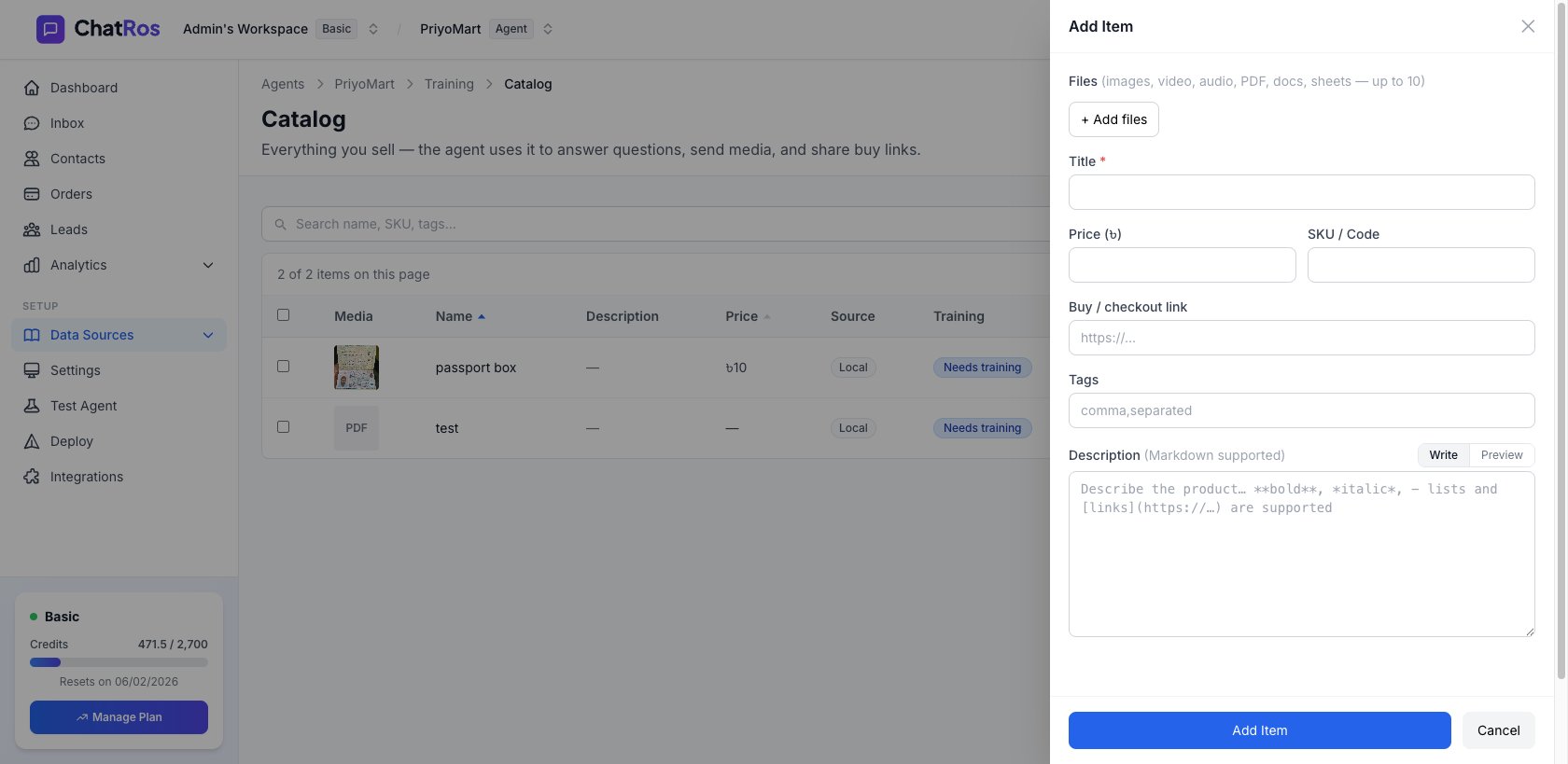
Add products to your catalog by hand, with images, prices, SKUs, tags, and variants.
You can build your catalog one product at a time from the Catalog page. This is ideal for small catalogs or for adding items that aren’t in a connected store.
Many products come in variations — sizes, colors, materials — each with its own price and SKU. A single catalog product can carry multiple variants, each defined by its options (e.g. Size: M, Color: Blue), an optional price, and an optional SKU.
Variants are most often brought in automatically when you sync from a store or import a CSV — Shopify and WooCommerce products keep their full variant lists.
When a product has variants at different prices, the catalog shows a price range (for example, ৳500–৳900) instead of a single price. Your agent can answer questions about specific variants — “Is the large one more expensive?” — and the variant options and SKUs are searchable, so a customer asking for a specific SKU or option gets the right item.
📸 Screenshot: a catalog product showing a variant price range (to be added).
Each row in the catalog table has actions to Edit or Delete a product. After editing, the product is re‑queued for training so the agent learns the change. You can also select multiple products to retrain or delete them in bulk.
The Training column shows each product’s status. If some products fail to train or hit your storage limit, a banner appears with a Retry option.
Import in bulk instead
Got lots of products? Import a CSV or sync a live store.
{"docsConfig":{"theme":"mint","$schema":"https://mintlify.com/docs.json","name":"ChatRos Documentation","colors":{"primary":"#4F46E5","light":"#7C3AED","dark":"#4338CA"},"logo":{"light":"https://mintcdn.com/softiustech/r0-Hu3fzPtGK9Luj/logo/light-large.svg?fit=max\u0026auto=format\u0026n=r0-Hu3fzPtGK9Luj\u0026q=85\u0026s=537b699737fcd81a760bbb8aed916e73","dark":"https://mintcdn.com/softiustech/r0-Hu3fzPtGK9Luj/logo/dark-large.svg?fit=max\u0026auto=format\u0026n=r0-Hu3fzPtGK9Luj\u0026q=85\u0026s=3aa14c4e4e4368d2939eafcc9de7b2ba"},"favicon":"https://mintcdn.com/softiustech/r0-Hu3fzPtGK9Luj/favicon.svg?fit=max\u0026auto=format\u0026n=r0-Hu3fzPtGK9Luj\u0026q=85\u0026s=29952df389fa814424675f3eb5699b5d","navbar":{"links":[{"href":"mailto:support@chatros.com","label":"Support"}],"primary":{"type":"button","label":"Dashboard","href":"https://chatros.com/dashboard"}},"footer":{"socials":{"x":"https://x.com/chatros","github":"https://github.com/chatros","linkedin":"https://linkedin.com/company/chatros"}},"contextual":{"options":["copy","view","chatgpt","claude","perplexity","mcp","cursor","vscode"],"display":"header"},"styling":{"latex":false},"navigation":{"global":{"anchors":[{"anchor":"Documentation","icon":"book-open-cover","href":"https://docs.chatros.com/"},{"anchor":"Dashboard","icon":"gauge","href":"https://chatros.com/dashboard"}]},"pages":[]}},"deployment":{"deploymentMetadataValue":{"subdomain":"softiustech","hasAudioNarration":false,"actualSubdomain":"softiustech","customDomains":["docs.chatros.com"],"gitSource":{"type":"github","owner":"ashraful1599","repo":"docs","deployBranch":"main","contentDirectory":"","isPrivate":false,"mountPath":"","label":""},"chroma":{"liveDeploymentHistoryId":"6a55fd5cc9c475dea5aea3ae","collectionId":"d17c53d8-6746-4def-a13d-02bed5f27c1f","schemaVersion":"v3"},"entitlements":{},"buildId":"6a55fd5cc9c475dea5aea3ae:success","clientVersion":"0.0.3971","searchFilterCounts":[{"language":"default","tag":"User Guides","count":22},{"language":"default","tag":"Deploy Your Agent","count":8},{"language":"default","tag":"AI Agent Management","count":4},{"language":"default","tag":"Product Catalog","count":4},{"language":"default","tag":"Integrations","count":3},{"language":"default","tag":"Quick Start","count":3},{"language":"default","tag":"Help \u0026 Support","count":1},{"language":"default","tag":"Support","count":1}]},"assistantConfig":{"enableAskAiButton":false,"enableStarterQuestions":false,"enableAskAiSearchBar":true},"basePath":"","hasChatPermissions":false,"hasWebMcpPermissions":false,"toggles":[{"name":"kill-isr","enabled":true,"variant":{"name":"disabled","enabled":false,"feature_enabled":true},"impressionData":false},{"name":"agent-mintlify-slack","enabled":true,"variant":{"name":"disabled","enabled":false,"feature_enabled":true},"impressionData":false},{"name":"editor-v7-file-tree","enabled":true,"variant":{"name":"disabled","enabled":false,"feature_enabled":true},"impressionData":false},{"name":"agent-integrations-settings","enabled":true,"variant":{"name":"disabled","enabled":false,"feature_enabled":true},"impressionData":false},{"name":"automations-pr-grouping","enabled":true,"variant":{"name":"disabled","enabled":false,"feature_enabled":true},"impressionData":false},{"name":"custom-prefix","enabled":true,"variant":{"name":"disabled","enabled":false,"feature_enabled":true},"impressionData":false},{"name":"analytics-v7","enabled":true,"variant":{"name":"disabled","enabled":false,"feature_enabled":true},"impressionData":false},{"name":"user-flows-analytics","enabled":true,"variant":{"name":"disabled","enabled":false,"feature_enabled":true},"impressionData":false},{"name":"no-publish-flow","enabled":true,"variant":{"name":"disabled","enabled":false,"feature_enabled":true},"impressionData":false},{"name":"workos-onboarding","enabled":true,"variant":{"name":"disabled","enabled":false,"feature_enabled":true},"impressionData":false},{"name":"llms-txt-v2","enabled":true,"variant":{"name":"disabled","enabled":false,"feature_enabled":true},"impressionData":false},{"name":"pause-universal-search-reconcile","enabled":true,"variant":{"name":"disabled","enabled":false,"feature_enabled":true},"impressionData":false},{"name":"snapshot-serving-live","enabled":true,"variant":{"name":"disabled","enabled":false,"feature_enabled":true},"impressionData":false},{"name":"stripTemperatureMiddleware","enabled":true,"variant":{"name":"disabled","enabled":false,"feature_enabled":true},"impressionData":false},{"name":"per-site-search-delta","enabled":true,"variant":{"name":"disabled","enabled":false,"feature_enabled":true},"impressionData":false},{"name":"support-platform-pylon-zendesk","enabled":true,"variant":{"name":"disabled","enabled":false,"feature_enabled":true},"impressionData":false},{"name":"snapshot-serving","enabled":true,"variant":{"name":"disabled","enabled":false,"feature_enabled":true},"impressionData":false},{"name":"instant-rollback","enabled":true,"variant":{"name":"disabled","enabled":false,"feature_enabled":true},"impressionData":false},{"name":"granular-notifications-server","enabled":true,"variant":{"name":"disabled","enabled":false,"feature_enabled":true},"impressionData":false},{"name":"granular-notifications","enabled":true,"variant":{"name":"disabled","enabled":false,"feature_enabled":true},"impressionData":false},{"name":"editor-private-page-search","enabled":true,"variant":{"name":"disabled","enabled":false,"feature_enabled":true},"impressionData":false},{"name":"automations-fable","enabled":true,"variant":{"name":"disabled","enabled":false,"feature_enabled":true},"impressionData":false},{"name":"fixed-ai-action-pricing","enabled":true,"variant":{"name":"disabled","enabled":false,"feature_enabled":true},"impressionData":false},{"name":"automation-resolve-merge-conflict","enabled":true,"variant":{"name":"disabled","enabled":false,"feature_enabled":true},"impressionData":false},{"name":"scoped-publishing","enabled":true,"variant":{"name":"disabled","enabled":false,"feature_enabled":true},"impressionData":false},{"name":"mintql","enabled":true,"variant":{"name":"disabled","enabled":false,"feature_enabled":true},"impressionData":false},{"name":"page-level-analytics","enabled":true,"variant":{"name":"disabled","enabled":false,"feature_enabled":true},"impressionData":false},{"name":"editor-version-history-v2","enabled":true,"variant":{"name":"disabled","enabled":false,"feature_enabled":true},"impressionData":false},{"name":"editor-nav-generations","enabled":true,"variant":{"name":"disabled","enabled":false,"feature_enabled":true},"impressionData":false},{"name":"billing-page-v2","enabled":true,"variant":{"name":"disabled","enabled":false,"feature_enabled":true},"impressionData":false},{"name":"workspace-projects","enabled":true,"variant":{"name":"disabled","enabled":false,"feature_enabled":true},"impressionData":false},{"name":"assistant-v5","enabled":true,"variant":{"name":"disabled","enabled":false,"feature_enabled":true},"impressionData":false},{"name":"byok-sep-25","enabled":true,"variant":{"name":"disabled","enabled":false,"feature_enabled":true},"impressionData":false},{"name":"fork-pr-previews","enabled":true,"variant":{"name":"disabled","enabled":false,"feature_enabled":true},"impressionData":false},{"name":"revalidation-jwt","enabled":true,"variant":{"name":"disabled","enabled":false,"feature_enabled":true},"impressionData":false},{"name":"vite-origin","enabled":true,"variant":{"name":"disabled","enabled":false,"feature_enabled":true},"impressionData":false},{"name":"editor-agent-model-picker","enabled":true,"variant":{"name":"disabled","enabled":false,"feature_enabled":true},"impressionData":false},{"name":"billing-updated-9-15","enabled":true,"variant":{"name":"disabled","enabled":false,"feature_enabled":true},"impressionData":false},{"name":"workos-sso-scim","enabled":true,"variant":{"name":"disabled","enabled":false,"feature_enabled":true},"impressionData":false},{"name":"hobby-abuse-scan","enabled":true,"variant":{"name":"disabled","enabled":false,"feature_enabled":true},"impressionData":false},{"name":"dashboard-inbox","enabled":true,"variant":{"name":"disabled","enabled":false,"feature_enabled":true},"impressionData":false},{"name":"workos-signup","enabled":true,"variant":{"name":"disabled","enabled":false,"feature_enabled":true},"impressionData":false},{"name":"workos-enabled","enabled":true,"variant":{"name":"disabled","enabled":false,"feature_enabled":true},"impressionData":false}],"isAtlas":false,"googleFontsInlined":false},"customCss":[{"filePath":"styles.css","content":".nav-logo{height:3.5rem!important;max-height:3.5rem!important}"}],"page":{"pagePath":"user-guides/catalog/products-and-variants","slug":"/user-guides/catalog/products-and-variants","pageMetadata":{"title":"Adding Products \u0026 Variants","description":"Add products to your catalog by hand, with images, prices, SKUs, tags, and variants.","href":"/user-guides/catalog/products-and-variants"},"description":{"compiledSource":"\"use strict\";\nconst {jsx: _jsx} = arguments[0];\nconst {useMDXComponents: _provideComponents} = arguments[0];\nfunction _createMdxContent(props) {\n const _components = {\n p: \"p\",\n ..._provideComponents(),\n ...props.components\n };\n return _jsx(_components.p, {\n children: \"Add products to your catalog by hand, with images, prices, SKUs, tags, and variants.\"\n });\n}\nfunction MDXContent(props = {}) {\n const {wrapper: MDXLayout} = {\n ..._provideComponents(),\n ...props.components\n };\n return MDXLayout ? _jsx(MDXLayout, {\n ...props,\n children: _jsx(_createMdxContent, {\n ...props\n })\n }) : _createMdxContent(props);\n}\nreturn {\n default: MDXContent\n};\n","frontmatter":{},"scope":{}},"pageType":"default","mdx":{"mdxSource":{"compiledSource":"\"use strict\";const{Fragment:_Fragment,jsx:_jsx,jsxs:_jsxs}=arguments[0];const{useMDXComponents:_provideComponents}=arguments[0];function _createMdxContent(props){const _components={a:`a`,code:`code`,em:`em`,p:`p`,strong:`strong`,tbody:`tbody`,td:`td`,th:`th`,thead:`thead`,tr:`tr`,..._provideComponents(),...props.components},{Card,Frame,Heading,Note,OptimizedImage,Step,Steps,Table,Tip}=_components;if(!Card)_missingMdxReference(`Card`,true);if(!Frame)_missingMdxReference(`Frame`,true);if(!Heading)_missingMdxReference(`Heading`,true);if(!Note)_missingMdxReference(`Note`,true);if(!OptimizedImage)_missingMdxReference(`OptimizedImage`,true);if(!Step)_missingMdxReference(`Step`,true);if(!Steps)_missingMdxReference(`Steps`,true);if(!Table)_missingMdxReference(`Table`,true);if(!Tip)_missingMdxReference(`Tip`,true);return _jsxs(_Fragment,{children:[_jsx(_components.p,{children:`You can build your catalog one product at a time from the Catalog page. This is ideal for small catalogs or for adding items that aren’t in a connected store.`}),`\n`,_jsx(Heading,{level:`2`,id:`add-a-product`,children:`Add a product`}),`\n`,_jsxs(Steps,{children:[_jsxs(Step,{title:`Click “Add Item”`,children:[_jsxs(_components.p,{children:[`On `,_jsx(_components.strong,{children:`Training → Catalog`}),`, click the `,_jsx(_components.strong,{children:`Add Item`}),` button in the toolbar. A panel slides in from the right.`]}),_jsx(Frame,{caption:`The Add Item panel.`,children:_jsx(OptimizedImage,{src:`https://mintcdn.com/softiustech/r0-Hu3fzPtGK9Luj/images/user-guides/catalog/add-product.png?fit=max\u0026auto=format\u0026n=r0-Hu3fzPtGK9Luj\u0026q=85\u0026s=b14b5574fcadbfe945b196408a9b374d`,alt:`Add Item form with Files, Title, Price, SKU, Buy link, Tags, and Description fields`,\"data-og-width\":`1680`,width:`1680`,\"data-og-height\":`819`,height:`819`,\"data-path\":`images/user-guides/catalog/add-product.png`,\"data-optimize\":`true`,\"data-opv\":`3`,srcset:`https://mintcdn.com/softiustech/r0-Hu3fzPtGK9Luj/images/user-guides/catalog/add-product.png?w=280\u0026fit=max\u0026auto=format\u0026n=r0-Hu3fzPtGK9Luj\u0026q=85\u0026s=b26d3b26d1e6bd2ed866c3fe8d9a6d52 280w, https://mintcdn.com/softiustech/r0-Hu3fzPtGK9Luj/images/user-guides/catalog/add-product.png?w=560\u0026fit=max\u0026auto=format\u0026n=r0-Hu3fzPtGK9Luj\u0026q=85\u0026s=8c9a9ae65274c2a791ea415662eb82b5 560w, https://mintcdn.com/softiustech/r0-Hu3fzPtGK9Luj/images/user-guides/catalog/add-product.png?w=840\u0026fit=max\u0026auto=format\u0026n=r0-Hu3fzPtGK9Luj\u0026q=85\u0026s=95c0d6fac3e346cd5e0933f400fd31f1 840w, https://mintcdn.com/softiustech/r0-Hu3fzPtGK9Luj/images/user-guides/catalog/add-product.png?w=1100\u0026fit=max\u0026auto=format\u0026n=r0-Hu3fzPtGK9Luj\u0026q=85\u0026s=a7746d0b7792c33f0942a5f8c4cb666f 1100w, https://mintcdn.com/softiustech/r0-Hu3fzPtGK9Luj/images/user-guides/catalog/add-product.png?w=1650\u0026fit=max\u0026auto=format\u0026n=r0-Hu3fzPtGK9Luj\u0026q=85\u0026s=b4152cc521695b73365b182b3f168a0c 1650w, https://mintcdn.com/softiustech/r0-Hu3fzPtGK9Luj/images/user-guides/catalog/add-product.png?w=2500\u0026fit=max\u0026auto=format\u0026n=r0-Hu3fzPtGK9Luj\u0026q=85\u0026s=34424e6b847938a2b2bcddbd29fcc69b 2500w`})})]}),_jsx(Step,{title:`Fill in the details`,children:_jsxs(Table,{children:[_jsx(_components.thead,{children:_jsxs(_components.tr,{children:[_jsx(_components.th,{children:`Field`}),_jsx(_components.th,{children:`Notes`})]})}),_jsxs(_components.tbody,{children:[_jsxs(_components.tr,{children:[_jsx(_components.td,{children:_jsx(_components.strong,{children:`Files`})}),_jsx(_components.td,{children:`Up to 10 images, videos, audio, PDFs, docs, or sheets.`})]}),_jsxs(_components.tr,{children:[_jsx(_components.td,{children:_jsx(_components.strong,{children:`Title`})}),_jsx(_components.td,{children:`The product name. Required.`})]}),_jsxs(_components.tr,{children:[_jsx(_components.td,{children:_jsx(_components.strong,{children:`Price (৳)`})}),_jsx(_components.td,{children:`The price. Leave blank if the product has variant‑specific prices.`})]}),_jsxs(_components.tr,{children:[_jsx(_components.td,{children:_jsx(_components.strong,{children:`SKU / Code`})}),_jsx(_components.td,{children:`Your internal product code.`})]}),_jsxs(_components.tr,{children:[_jsx(_components.td,{children:_jsx(_components.strong,{children:`Buy / checkout link`})}),_jsx(_components.td,{children:`A URL the agent can share so customers can purchase.`})]}),_jsxs(_components.tr,{children:[_jsx(_components.td,{children:_jsx(_components.strong,{children:`Tags`})}),_jsxs(_components.td,{children:[`Comma‑separated keywords (e.g. `,_jsx(_components.code,{children:`summer, cotton, unisex`}),`) — these help the agent find the product.`]})]}),_jsxs(_components.tr,{children:[_jsx(_components.td,{children:_jsx(_components.strong,{children:`Description`})}),_jsxs(_components.td,{children:[`Supports `,_jsx(_components.strong,{children:`Markdown`}),` for formatting (with a Write/Preview toggle).`]})]})]})]})}),_jsx(Step,{title:`Add images`,children:_jsxs(_components.p,{children:[`Upload product images in the `,_jsx(_components.strong,{children:`Files`}),` section. Good images matter — they power `,_jsx(_components.a,{href:`/user-guides/catalog/image-search`,children:`image product search`}),` and can be sent to customers in chat.`]})}),_jsx(Step,{title:`Save`,children:_jsx(_components.p,{children:`Save the product. It appears in the table and is queued for training.`})})]}),`\n`,_jsx(Heading,{level:`2`,id:`variants`,children:`Variants`}),`\n`,_jsxs(_components.p,{children:[`Many products come in variations — sizes, colors, materials — each with its own price and SKU. A single catalog product can carry multiple `,_jsx(_components.strong,{children:`variants`}),`, each defined by its options (e.g. `,_jsx(_components.em,{children:`Size: M, Color: Blue`}),`), an optional price, and an optional SKU.`]}),`\n`,_jsx(Note,{children:_jsxs(_components.p,{children:[`Variants are most often brought in automatically when you `,_jsx(_components.a,{href:`/user-guides/catalog/importing`,children:`sync from a store or import a CSV`}),` — Shopify and WooCommerce products keep their full variant lists.`]})}),`\n`,_jsxs(_components.p,{children:[`When a product has variants at different prices, the catalog shows a `,_jsx(_components.strong,{children:`price range`}),` (for example, `,_jsx(_components.em,{children:`৳500–৳900`}),`) instead of a single price. Your agent can answer questions about specific variants — `,_jsx(_components.em,{children:`“Is the large one more expensive?”`}),` — and the variant options and SKUs are searchable, so a customer asking for a specific SKU or option gets the right item.`]}),`\n`,_jsxs(Note,{children:[`📸 Screenshot: a catalog product showing a variant price range `,_jsx(_components.em,{children:`(to be added)`}),`.`]}),`\n`,_jsx(Heading,{level:`2`,id:`edit-retrain-or-delete`,children:`Edit, retrain, or delete`}),`\n`,_jsxs(_components.p,{children:[`Each row in the catalog table has actions to `,_jsx(_components.strong,{children:`Edit`}),` or `,_jsx(_components.strong,{children:`Delete`}),` a product. After editing, the product is re‑queued for training so the agent learns the change. You can also select multiple products to `,_jsx(_components.strong,{children:`retrain`}),` or `,_jsx(_components.strong,{children:`delete`}),` them in bulk.`]}),`\n`,_jsx(Tip,{children:_jsxs(_components.p,{children:[`The `,_jsx(_components.strong,{children:`Training`}),` column shows each product’s status. If some products fail to train or hit your storage limit, a banner appears with a `,_jsx(_components.strong,{children:`Retry`}),` option.`]})}),`\n`,_jsx(Card,{title:`Import in bulk instead`,icon:`file-import`,href:`/user-guides/catalog/importing`,children:_jsx(_components.p,{children:`Got lots of products? Import a CSV or sync a live store.`})})]})}function MDXContent(props={}){const{wrapper:MDXLayout}={..._provideComponents(),...props.components};return MDXLayout?_jsx(MDXLayout,{...props,children:_jsx(_createMdxContent,{...props})}):_createMdxContent(props)}return{default:MDXContent};function _missingMdxReference(id,component){throw new Error(`Expected `+(component?`component`:`object`)+\" `\"+id+\"` to be defined: you likely forgot to import, pass, or provide it.\")}","frontmatter":{},"scope":{"config":{},"pageMetadata":{"title":"Adding Products \u0026 Variants","description":"Add products to your catalog by hand, with images, prices, SKUs, tags, and variants.","href":"/user-guides/catalog/products-and-variants"}}},"mdxSourceWithNoJs":null},"mdxExtracts":{"tableOfContents":[{"title":"Add a product","slug":"add-a-product","depth":2,"children":[]},{"title":"Variants","slug":"variants","depth":2,"children":[]},{"title":"Edit, retrain, or delete","slug":"edit-retrain-or-delete","depth":2,"children":[]}],"codeExamples":{}},"jsLinks":[],"subdomain":"softiustech","siteName":"ChatRos Documentation","title":"Adding Products \u0026 Variants - ChatRos Documentation","navMaps":{"firstHrefInVersion":{},"firstHrefInLanguage":{}},"lastModified":"2026-07-14T08:27:06.973Z","originalFileLocation":"user-guides/catalog/products-and-variants.mdx"},"headHtml":"\u003cscript data-mint-head>(function(){var d=document.documentElement,p=null;if(!p){try{p=localStorage.getItem(\"isDarkMode\")}catch(e){}if(p==='true')p='dark';else if(p==='false')p='light';if(p!=='light'\u0026\u0026p!=='dark'\u0026\u0026p!=='system')p=\"system\"}var r=p==='system'?(matchMedia(\"(prefers-color-scheme: dark)\").matches?'dark':'light'):p;d.classList.remove(r==='dark'?'light':'dark');d.classList.add(r);d.setAttribute(\"data-theme-preference\",p)})();\u003c/script>\u003cmeta data-mint-head name=\"description\" content=\"Add products to your catalog by hand, with images, prices, SKUs, tags, and variants.\">\u003cmeta data-mint-head name=\"application-name\" content=\"ChatRos Documentation\">\u003cmeta data-mint-head name=\"generator\" content=\"Mintlify\">\u003clink data-mint-head rel=\"icon\" type=\"image/png\" sizes=\"192x192\" href=\"/mintlify-assets/_mintlify/favicons/softiustech/EvHND5P9HB0YlKWb/_generated/favicon/android-chrome-192x192.png\" media=\"(prefers-color-scheme: light)\">\u003clink data-mint-head rel=\"apple-touch-icon\" type=\"image/png\" sizes=\"180x180\" href=\"/mintlify-assets/_mintlify/favicons/softiustech/EvHND5P9HB0YlKWb/_generated/favicon/apple-touch-icon.png\">\u003clink data-mint-head rel=\"icon\" type=\"image/png\" sizes=\"16x16\" href=\"/mintlify-assets/_mintlify/favicons/softiustech/EvHND5P9HB0YlKWb/_generated/favicon/favicon-16x16.png\" media=\"(prefers-color-scheme: light)\">\u003clink data-mint-head rel=\"icon\" type=\"image/png\" sizes=\"32x32\" href=\"/mintlify-assets/_mintlify/favicons/softiustech/EvHND5P9HB0YlKWb/_generated/favicon/favicon-32x32.png\" media=\"(prefers-color-scheme: light)\">\u003clink data-mint-head rel=\"shortcut icon\" type=\"image/x-icon\" href=\"/mintlify-assets/_mintlify/favicons/softiustech/EvHND5P9HB0YlKWb/_generated/favicon/favicon.ico\" media=\"(prefers-color-scheme: light)\">\u003clink data-mint-head rel=\"icon\" type=\"image/png\" sizes=\"192x192\" href=\"/mintlify-assets/_mintlify/favicons/softiustech/EvHND5P9HB0YlKWb/_generated/favicon-dark/android-chrome-192x192.png\" media=\"(prefers-color-scheme: dark)\">\u003clink data-mint-head rel=\"icon\" type=\"image/png\" sizes=\"16x16\" href=\"/mintlify-assets/_mintlify/favicons/softiustech/EvHND5P9HB0YlKWb/_generated/favicon-dark/favicon-16x16.png\" media=\"(prefers-color-scheme: dark)\">\u003clink data-mint-head rel=\"icon\" type=\"image/png\" sizes=\"32x32\" href=\"/mintlify-assets/_mintlify/favicons/softiustech/EvHND5P9HB0YlKWb/_generated/favicon-dark/favicon-32x32.png\" media=\"(prefers-color-scheme: dark)\">\u003clink data-mint-head rel=\"shortcut icon\" type=\"image/x-icon\" href=\"/mintlify-assets/_mintlify/favicons/softiustech/EvHND5P9HB0YlKWb/_generated/favicon-dark/favicon.ico\" media=\"(prefers-color-scheme: dark)\">\u003cmeta data-mint-head property=\"og:title\" content=\"Adding Products \u0026amp; Variants - ChatRos Documentation\">\u003cmeta data-mint-head property=\"og:description\" content=\"Add products to your catalog by hand, with images, prices, SKUs, tags, and variants.\">\u003cmeta data-mint-head property=\"og:site_name\" content=\"ChatRos Documentation\">\u003cmeta data-mint-head property=\"og:url\" content=\"https://docs.chatros.com/user-guides/catalog/products-and-variants\">\u003cmeta data-mint-head property=\"og:type\" content=\"website\">\u003cmeta data-mint-head property=\"og:image\" content=\"https://softiustech.mintlify.app/_mintlify/api/og/v2?division=Product+Catalog\u0026amp;title=Adding+Products+%26+Variants\u0026amp;description=Add+products+to+your+catalog+by+hand%2C+with+images%2C+prices%2C+SKUs%2C+tags%2C+and+variants.\u0026amp;theme=9b6ad218cbde2a744be87e8f\u0026amp;signature=8f77fe44f223d7dd3fe62f89e372e6de3019f51b44b9a12b7f41acc839d4d11a\">\u003cmeta data-mint-head property=\"og:image:width\" content=\"1200\">\u003cmeta data-mint-head property=\"og:image:height\" content=\"630\">\u003cmeta data-mint-head name=\"twitter:card\" content=\"summary_large_image\">\u003cmeta data-mint-head name=\"twitter:title\" content=\"Adding Products \u0026amp; Variants - ChatRos Documentation\">\u003cmeta data-mint-head name=\"twitter:description\" content=\"Add products to your catalog by hand, with images, prices, SKUs, tags, and variants.\">\u003cmeta data-mint-head name=\"twitter:image\" content=\"https://softiustech.mintlify.app/_mintlify/api/og/v2?division=Product+Catalog\u0026amp;title=Adding+Products+%26+Variants\u0026amp;description=Add+products+to+your+catalog+by+hand%2C+with+images%2C+prices%2C+SKUs%2C+tags%2C+and+variants.\u0026amp;theme=9b6ad218cbde2a744be87e8f\u0026amp;signature=8f77fe44f223d7dd3fe62f89e372e6de3019f51b44b9a12b7f41acc839d4d11a\">\u003cmeta data-mint-head name=\"twitter:image:width\" content=\"1200\">\u003cmeta data-mint-head name=\"twitter:image:height\" content=\"630\">\u003cmeta data-mint-head name=\"msapplication-config\" content=\"/mintlify-assets/_mintlify/favicons/softiustech/EvHND5P9HB0YlKWb/_generated/favicon/browserconfig.xml\">\u003cmeta data-mint-head name=\"apple-mobile-web-app-title\" content=\"ChatRos Documentation\">\u003cmeta data-mint-head name=\"msapplication-TileColor\" content=\"#4F46E5\">\u003clink data-mint-head rel=\"canonical\" href=\"https://docs.chatros.com/user-guides/catalog/products-and-variants\">\u003clink data-mint-head rel=\"alternate\" type=\"application/xml\" href=\"/sitemap.xml\">\u003clink data-mint-head rel=\"alternate\" type=\"text/markdown\" href=\"/user-guides/catalog/products-and-variants.md\">\u003cscript data-mint-head type=\"application/ld+json\">{\"@context\":\"https://schema.org\",\"@graph\":[{\"@type\":\"Organization\",\"@id\":\"https://docs.chatros.com/#organization\",\"name\":\"ChatRos Documentation\",\"url\":\"https://docs.chatros.com\",\"logo\":{\"@type\":\"ImageObject\",\"url\":\"https://mintcdn.com/softiustech/r0-Hu3fzPtGK9Luj/logo/light-large.svg?fit=max\u0026auto=format\u0026n=r0-Hu3fzPtGK9Luj\u0026q=85\u0026s=537b699737fcd81a760bbb8aed916e73\"}},{\"@type\":\"WebSite\",\"@id\":\"https://docs.chatros.com#website\",\"name\":\"ChatRos Documentation\",\"url\":\"https://docs.chatros.com\",\"publisher\":{\"@id\":\"https://docs.chatros.com/#organization\"}},{\"@type\":\"WebPage\",\"@id\":\"https://docs.chatros.com/user-guides/catalog/products-and-variants#webpage\",\"url\":\"https://docs.chatros.com/user-guides/catalog/products-and-variants\",\"name\":\"Adding Products \u0026 Variants\",\"description\":\"Add products to your catalog by hand, with images, prices, SKUs, tags, and variants.\",\"dateModified\":\"2026-07-14T08:27:06.973Z\",\"isPartOf\":{\"@id\":\"https://docs.chatros.com#website\"},\"breadcrumb\":{\"@id\":\"https://docs.chatros.com/user-guides/catalog/products-and-variants#breadcrumb\"}},{\"@type\":\"BreadcrumbList\",\"@id\":\"https://docs.chatros.com/user-guides/catalog/products-and-variants#breadcrumb\",\"itemListElement\":[{\"@type\":\"ListItem\",\"position\":1,\"name\":\"Product Catalog\",\"item\":\"https://docs.chatros.com/user-guides/catalog/introduction\"},{\"@type\":\"ListItem\",\"position\":2,\"name\":\"Adding Products \u0026 Variants\",\"item\":\"https://docs.chatros.com/user-guides/catalog/products-and-variants\"}]},{\"@type\":[\"Article\",\"TechArticle\"],\"@id\":\"https://docs.chatros.com/user-guides/catalog/products-and-variants#article\",\"headline\":\"Adding Products \u0026 Variants\",\"name\":\"Adding Products \u0026 Variants\",\"description\":\"Add products to your catalog by hand, with images, prices, SKUs, tags, and variants.\",\"url\":\"https://docs.chatros.com/user-guides/catalog/products-and-variants\",\"mainEntityOfPage\":{\"@id\":\"https://docs.chatros.com/user-guides/catalog/products-and-variants#webpage\"},\"dateModified\":\"2026-07-14T08:27:06.973Z\",\"publisher\":{\"@id\":\"https://docs.chatros.com/#organization\"},\"isPartOf\":{\"@id\":\"https://docs.chatros.com#website\"}}]}\u003c/script>\u003cscript data-mint-head type=\"application/ld+json\">{\"@context\":\"https://schema.org\",\"@type\":\"WebSite\",\"name\":\"ChatRos Documentation\",\"creator\":{\"@type\":\"Organization\",\"name\":\"Mintlify\",\"url\":\"https://mintlify.com\"}}\u003c/script>","siteName":"ChatRos Documentation","nav":{"global":{"anchors":[{"anchor":"Documentation","icon":"book-open-cover","href":"https://docs.chatros.com/"},{"anchor":"Dashboard","icon":"gauge","href":"https://chatros.com/dashboard"}]},"tabs":[{"tab":"User Guides","groups":[{"group":"Quick Start","pages":[{"title":"Welcome to ChatRos","href":"/user-guides/quick-start/introduction"},{"title":"Build Your First AI Agent","href":"/user-guides/quick-start/your-first-agent"},{"title":"Best Practices","href":"/user-guides/quick-start/best-practices"}]},{"group":"AI Agent Management","pages":[{"title":"Sources","href":"/user-guides/agent/sources"},{"title":"Settings","href":"/user-guides/agent/settings"},{"title":"Activity","href":"/user-guides/agent/activity"},{"title":"Analytics","href":"/user-guides/agent/analytics"}]},{"group":"Deploy Your Agent","pages":[{"title":"Deploy Your Agent","href":"/user-guides/deploy/introduction"},{"title":"Chat Widget","href":"/user-guides/deploy/chat-widget"},{"title":"WhatsApp","href":"/user-guides/deploy/whatsapp"},{"title":"Messenger","href":"/user-guides/deploy/messenger"},{"title":"Instagram","href":"/user-guides/deploy/instagram"},{"title":"Telegram","href":"/user-guides/deploy/telegram"},{"title":"Shopify","href":"/user-guides/deploy/shopify"},{"title":"WooCommerce","href":"/user-guides/deploy/woocommerce"}]},{"group":"Product Catalog","pages":[{"title":"Product Catalog","description":"Give your agent a product catalog so it can recommend items, quote prices, and answer questions about what you sell.","href":"/user-guides/catalog/introduction"},{"title":"Adding Products \u0026 Variants","href":"/user-guides/catalog/products-and-variants"},{"title":"Importing Products","description":"Bulk‑import your catalog from a CSV file, or sync it live from Shopify, WooCommerce, Medusa, or Google Sheets.","href":"/user-guides/catalog/importing"},{"title":"Image Product Search","href":"/user-guides/catalog/image-search"}]},{"group":"Integrations","pages":[{"title":"Klaviyo Integration","href":"/user-guides/integrations/klaviyo"},{"title":"Mailchimp Integration","href":"/user-guides/integrations/mailchimp"},{"title":"MailerLite Integration","href":"/user-guides/integrations/mailerlite"}]}]},{"tab":"Help \u0026 Support","pages":[{"title":"Help \u0026 Support","href":"/help/faq"}]}]},"title":"Adding Products \u0026 Variants - ChatRos Documentation","buildId":"dpl_DFJrtvUi8HS5F9nkooKuDJsuD5BM","deploymentId":"dpl_DFJrtvUi8HS5F9nkooKuDJsuD5BM","dynamics":["07c022d89b","a74be98ba7"],"chunks":["Frame-COGkNuA6.js","DynamicMarkdown-85clUA0i.js","zoom-image-lightbox-BZxD9MAj.js","lightbox-handle-r17bVUz3.js"]}