> ## Documentation Index
> Fetch the complete documentation index at: https://docs.chatros.com/llms.txt
> Use this file to discover all available pages before exploring further.
# Telegram
> Connect a Telegram bot so your agent handles 1‑on‑1 customer chats automatically.
Connect a Telegram bot and your agent will automatically reply to private messages sent to it. Telegram uses a **bot token** from Telegram's official @BotFather — no Facebook or OAuth involved.
Only **1‑on‑1 private chats** are supported. Messages sent in Telegram groups are ignored.
## Step 1 — Create a bot with @BotFather
In Telegram, search for **@BotFather** and open the chat.
Send the command `/newbot` and follow the prompts to name your bot and choose a username.
BotFather replies with a token that looks like `123456789:ABCdefGHIjklMNOpqrsTUVwxyz`. Copy it — you'll paste it into ChatRos next.
📸 Screenshot: the @BotFather chat showing the `/newbot` flow and the generated token *(to be added)*.
## Step 2 — Connect the bot in ChatRos
From your agent, go to **Deploy → Integration Channels → Telegram Bot**.
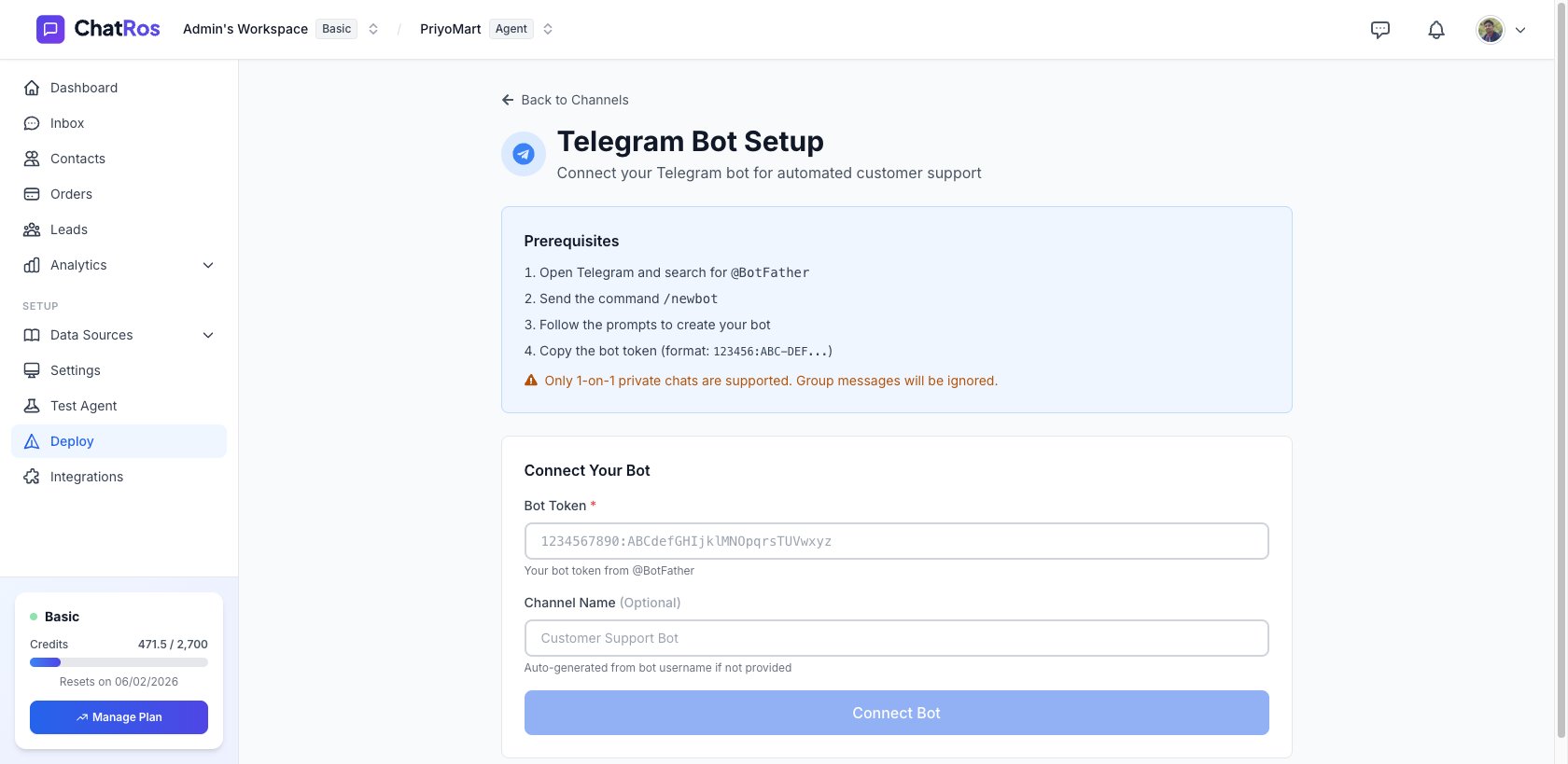 Paste the token into the **Bot Token** field. Optionally give the channel a name (e.g. *Customer Support Bot*) — if you leave it blank, it's generated from the bot's username.
ChatRos configures the webhook with Telegram automatically. You'll see a **Telegram Bot Connected!** confirmation with your bot's username, ID, and status.
📸 Screenshot: the **Telegram Bot Connected!** success state *(to be added)*.
Message your bot on Telegram (`@your_bot_username`) — your agent replies automatically.
## What your agent can do on Telegram
* **Reply automatically** to private messages.
* **Send and receive images**.
* **Show a typing indicator**.
Telegram does **not** provide delivery or read receipts. This is a Telegram platform limitation — unlike WhatsApp, Messenger, and Instagram, there's no "seen" status to report.
## Manage or disconnect
Return to **Deploy → Telegram Bot** to view the connected bot or click **Disconnect Bot** to stop handling its messages.
Paste the token into the **Bot Token** field. Optionally give the channel a name (e.g. *Customer Support Bot*) — if you leave it blank, it's generated from the bot's username.
ChatRos configures the webhook with Telegram automatically. You'll see a **Telegram Bot Connected!** confirmation with your bot's username, ID, and status.
📸 Screenshot: the **Telegram Bot Connected!** success state *(to be added)*.
Message your bot on Telegram (`@your_bot_username`) — your agent replies automatically.
## What your agent can do on Telegram
* **Reply automatically** to private messages.
* **Send and receive images**.
* **Show a typing indicator**.
Telegram does **not** provide delivery or read receipts. This is a Telegram platform limitation — unlike WhatsApp, Messenger, and Instagram, there's no "seen" status to report.
## Manage or disconnect
Return to **Deploy → Telegram Bot** to view the connected bot or click **Disconnect Bot** to stop handling its messages.