> ## Documentation Index
> Fetch the complete documentation index at: https://docs.chatros.com/llms.txt
> Use this file to discover all available pages before exploring further.
# Messenger
> Connect your Facebook Page so your agent replies to Messenger conversations automatically.
Connect your Facebook Page and your agent will automatically respond to Messenger conversations with AI. Setup is a one‑click Facebook sign‑in — no webhooks or tokens to configure.
## Before you connect
* You have a **Facebook Page** and you're an **admin** of it.
* You know which Page your agent should reply from (you'll pick it during setup if you manage more than one).
## Connect Messenger
From your agent, go to **Deploy → Integration Channels → Messenger**.
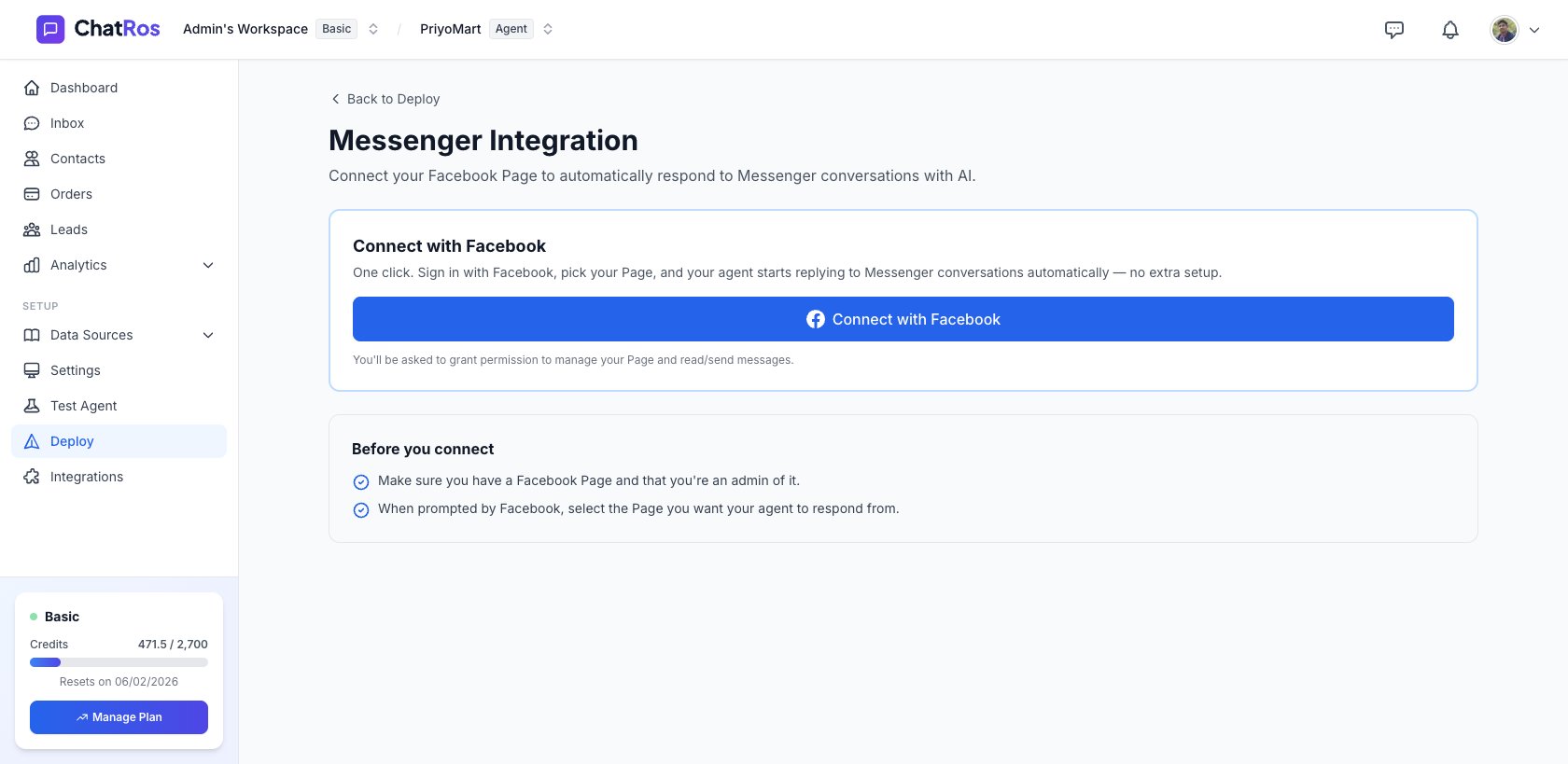 You'll be redirected to Facebook to sign in and grant permission to manage your Page and read/send messages.
Approve the requested permissions. When you're done, Facebook sends you back to ChatRos.
If you manage more than one Page, pick the one this agent should respond from, then click **Connect This Page**.
📸 Screenshot: the **Choose a Facebook Page** selection screen *(to be added)*.
You'll see a green **Connected** card showing your Page name and ID. Your agent now replies to Messenger automatically — no further setup needed.
📸 Screenshot: the connected Messenger card *(to be added)*.
## What your agent can do on Messenger
* **Reply automatically** to Messenger conversations on your Page.
* **Send and receive images**.
* **Show a typing indicator** and report **delivery and read receipts**.
## Manage or disconnect
Return to **Deploy → Messenger** to view the connected Page or click **Disconnect**. Disconnecting stops your agent from handling that Page's Messenger conversations.
If your Instagram account is linked to this Page, connect it too so DMs are handled by the same agent.
You'll be redirected to Facebook to sign in and grant permission to manage your Page and read/send messages.
Approve the requested permissions. When you're done, Facebook sends you back to ChatRos.
If you manage more than one Page, pick the one this agent should respond from, then click **Connect This Page**.
📸 Screenshot: the **Choose a Facebook Page** selection screen *(to be added)*.
You'll see a green **Connected** card showing your Page name and ID. Your agent now replies to Messenger automatically — no further setup needed.
📸 Screenshot: the connected Messenger card *(to be added)*.
## What your agent can do on Messenger
* **Reply automatically** to Messenger conversations on your Page.
* **Send and receive images**.
* **Show a typing indicator** and report **delivery and read receipts**.
## Manage or disconnect
Return to **Deploy → Messenger** to view the connected Page or click **Disconnect**. Disconnecting stops your agent from handling that Page's Messenger conversations.
If your Instagram account is linked to this Page, connect it too so DMs are handled by the same agent.