> ## Documentation Index
> Fetch the complete documentation index at: https://docs.chatros.com/llms.txt
> Use this file to discover all available pages before exploring further.
# Adding Products & Variants
> Add products to your catalog by hand, with images, prices, SKUs, tags, and variants.
You can build your catalog one product at a time from the Catalog page. This is ideal for small catalogs or for adding items that aren't in a connected store.
## Add a product
On **Training → Catalog**, click the **Add Item** button in the toolbar. A panel slides in from the right.
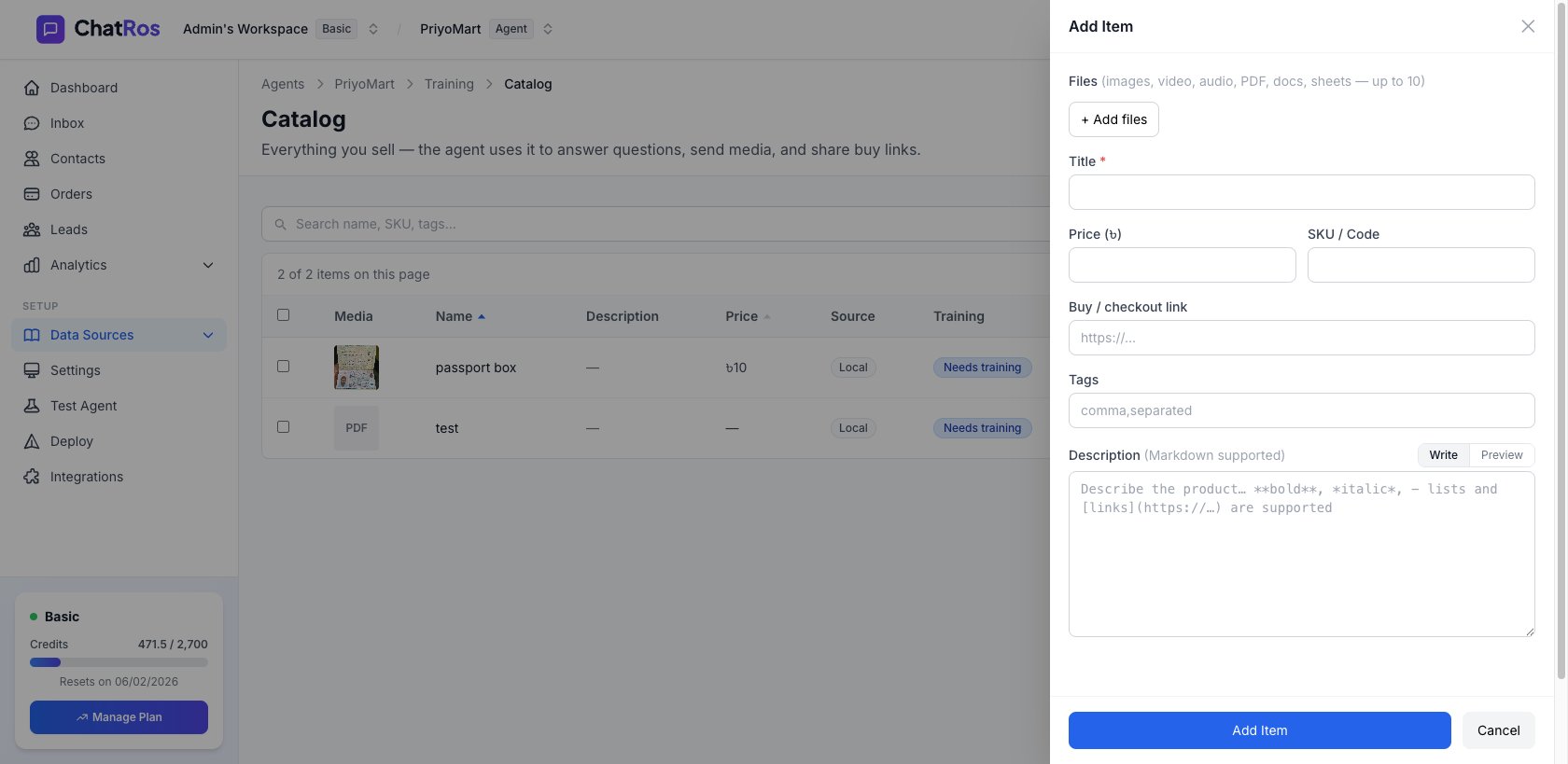 | Field | Notes |
| ----------------------- | ------------------------------------------------------------------------------------------------- |
| **Files** | Up to 10 images, videos, audio, PDFs, docs, or sheets. |
| **Title** | The product name. Required. |
| **Price (৳)** | The price. Leave blank if the product has variant‑specific prices. |
| **SKU / Code** | Your internal product code. |
| **Buy / checkout link** | A URL the agent can share so customers can purchase. |
| **Tags** | Comma‑separated keywords (e.g. `summer, cotton, unisex`) — these help the agent find the product. |
| **Description** | Supports **Markdown** for formatting (with a Write/Preview toggle). |
Upload product images in the **Files** section. Good images matter — they power [image product search](/user-guides/catalog/image-search) and can be sent to customers in chat.
Save the product. It appears in the table and is queued for training.
## Variants
Many products come in variations — sizes, colors, materials — each with its own price and SKU. A single catalog product can carry multiple **variants**, each defined by its options (e.g. *Size: M, Color: Blue*), an optional price, and an optional SKU.
Variants are most often brought in automatically when you [sync from a store or import a CSV](/user-guides/catalog/importing) — Shopify and WooCommerce products keep their full variant lists.
When a product has variants at different prices, the catalog shows a **price range** (for example, *৳500–৳900*) instead of a single price. Your agent can answer questions about specific variants — *"Is the large one more expensive?"* — and the variant options and SKUs are searchable, so a customer asking for a specific SKU or option gets the right item.
📸 Screenshot: a catalog product showing a variant price range *(to be added)*.
## Edit, retrain, or delete
Each row in the catalog table has actions to **Edit** or **Delete** a product. After editing, the product is re‑queued for training so the agent learns the change. You can also select multiple products to **retrain** or **delete** them in bulk.
The **Training** column shows each product's status. If some products fail to train or hit your storage limit, a banner appears with a **Retry** option.
Got lots of products? Import a CSV or sync a live store.
| Field | Notes |
| ----------------------- | ------------------------------------------------------------------------------------------------- |
| **Files** | Up to 10 images, videos, audio, PDFs, docs, or sheets. |
| **Title** | The product name. Required. |
| **Price (৳)** | The price. Leave blank if the product has variant‑specific prices. |
| **SKU / Code** | Your internal product code. |
| **Buy / checkout link** | A URL the agent can share so customers can purchase. |
| **Tags** | Comma‑separated keywords (e.g. `summer, cotton, unisex`) — these help the agent find the product. |
| **Description** | Supports **Markdown** for formatting (with a Write/Preview toggle). |
Upload product images in the **Files** section. Good images matter — they power [image product search](/user-guides/catalog/image-search) and can be sent to customers in chat.
Save the product. It appears in the table and is queued for training.
## Variants
Many products come in variations — sizes, colors, materials — each with its own price and SKU. A single catalog product can carry multiple **variants**, each defined by its options (e.g. *Size: M, Color: Blue*), an optional price, and an optional SKU.
Variants are most often brought in automatically when you [sync from a store or import a CSV](/user-guides/catalog/importing) — Shopify and WooCommerce products keep their full variant lists.
When a product has variants at different prices, the catalog shows a **price range** (for example, *৳500–৳900*) instead of a single price. Your agent can answer questions about specific variants — *"Is the large one more expensive?"* — and the variant options and SKUs are searchable, so a customer asking for a specific SKU or option gets the right item.
📸 Screenshot: a catalog product showing a variant price range *(to be added)*.
## Edit, retrain, or delete
Each row in the catalog table has actions to **Edit** or **Delete** a product. After editing, the product is re‑queued for training so the agent learns the change. You can also select multiple products to **retrain** or **delete** them in bulk.
The **Training** column shows each product's status. If some products fail to train or hit your storage limit, a banner appears with a **Retry** option.
Got lots of products? Import a CSV or sync a live store.