> ## Documentation Index
> Fetch the complete documentation index at: https://docs.chatros.com/llms.txt
> Use this file to discover all available pages before exploring further.
# Product Catalog
> Give your agent a product catalog so it can recommend items, quote prices, and answer questions about what you sell.
The **Product Catalog** is a structured list of what you sell. Once your agent is trained on it, it can recommend products, quote prices, describe variants, and even match a photo a customer sends to the right item.
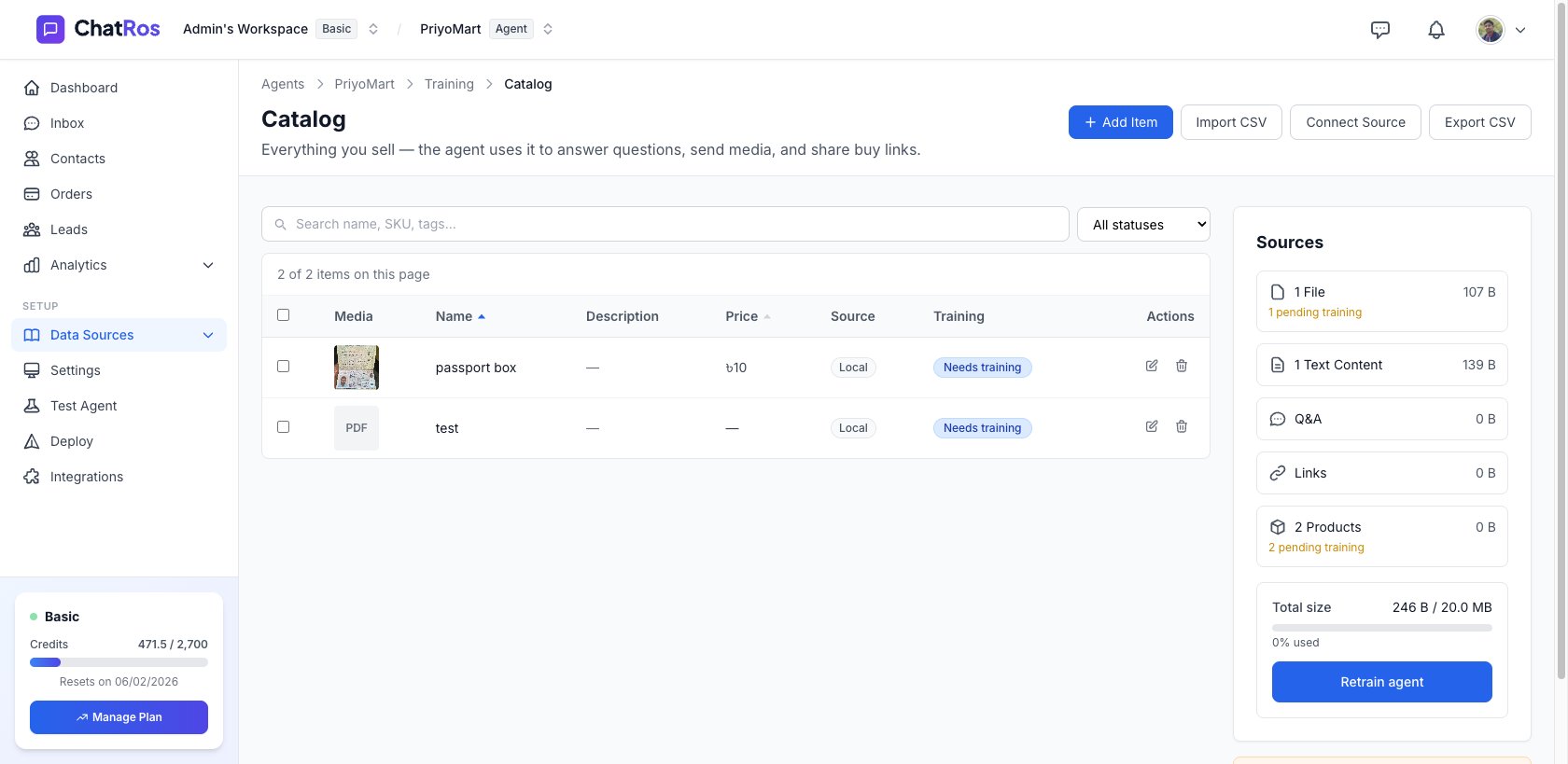
Open your agent and go to **Training → Catalog** to manage it.
 ## Why use a catalog?
A catalog is more precise than plain text sources. Each product is a structured record — name, price, SKU, tags, images, and variants — so the agent gives accurate answers instead of paraphrasing a web page.
Add items by hand, including sizes, colors, and per‑variant prices and SKUs.
Import from a CSV, or sync live from Shopify, WooCommerce, Medusa, or Google Sheets.
Let customers send a photo and have the agent find the matching product.
Your catalog powers answers on every connected channel.
## How it fits together
Add products manually, import a CSV, or connect a store/spreadsheet source.
Each product is trained so the agent can retrieve it. The Catalog page shows a **Training** status per product.
Use **Sync** to pull the latest products from your connected sources whenever your store changes.
## The Catalog toolbar
At the top of the Catalog page you'll find:
* **Add Item** — create a single product by hand.
* **Import CSV** — bulk‑import from a spreadsheet file.
* **Connect Source** — connect a store or spreadsheet. Once a source is connected, this button becomes **Sync**, which pulls the latest from every connected source (store first, then spreadsheet).
* **Export CSV** — download your current catalog.
You can search by **name, SKU, or tags**, and sort by name or price.
Start building your catalog one product at a time.
## Why use a catalog?
A catalog is more precise than plain text sources. Each product is a structured record — name, price, SKU, tags, images, and variants — so the agent gives accurate answers instead of paraphrasing a web page.
Add items by hand, including sizes, colors, and per‑variant prices and SKUs.
Import from a CSV, or sync live from Shopify, WooCommerce, Medusa, or Google Sheets.
Let customers send a photo and have the agent find the matching product.
Your catalog powers answers on every connected channel.
## How it fits together
Add products manually, import a CSV, or connect a store/spreadsheet source.
Each product is trained so the agent can retrieve it. The Catalog page shows a **Training** status per product.
Use **Sync** to pull the latest products from your connected sources whenever your store changes.
## The Catalog toolbar
At the top of the Catalog page you'll find:
* **Add Item** — create a single product by hand.
* **Import CSV** — bulk‑import from a spreadsheet file.
* **Connect Source** — connect a store or spreadsheet. Once a source is connected, this button becomes **Sync**, which pulls the latest from every connected source (store first, then spreadsheet).
* **Export CSV** — download your current catalog.
You can search by **name, SKU, or tags**, and sort by name or price.
Start building your catalog one product at a time.