> ## Documentation Index
> Fetch the complete documentation index at: https://docs.chatros.com/llms.txt
> Use this file to discover all available pages before exploring further.
# Importing Products
> Bulk‑import your catalog from a CSV file, or sync it live from Shopify, WooCommerce, Medusa, or Google Sheets.
For anything larger than a handful of products, import in bulk. You have two options: a one‑time **CSV import**, or a live **source sync** that keeps your catalog up to date with your store or spreadsheet.
## Option A — Import a CSV
On **Training → Catalog**, click **Import CSV** and choose your file.
ChatRos previews the file and asks you to match your spreadsheet columns to catalog fields: **title, description, price, sku, tags, url, imageUrl**. Map each one, then click **Import**.
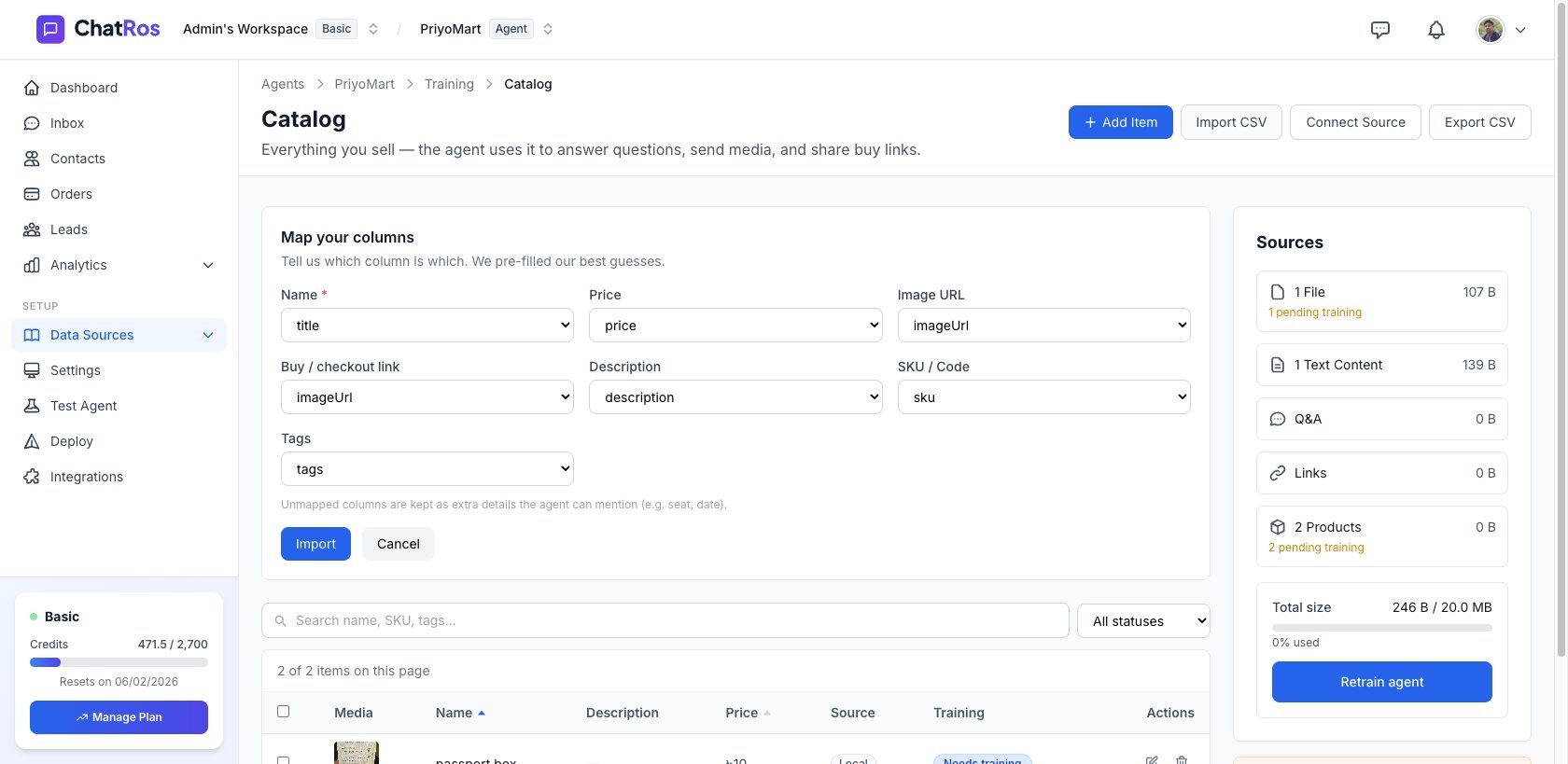 You'll see progress as ChatRos reads, uploads, and saves your products. When it's done, they appear in the table and are queued for training.
Not sure of the format? Click **Export CSV** first to download a file with the exact columns ChatRos expects, fill it in, and re‑import.
## Option B — Sync from a live source
Connect a source once and pull products automatically — and re‑sync whenever your store changes. Supported sources:
Products and variants from your Shopify store.
Products from your WooCommerce store via the ChatRos plugin.
Products from your Medusa backend.
Products from a spreadsheet you choose — map the columns once and keep them in sync.
### Connect a source
On the Catalog page, click **Connect Source** (if nothing is connected yet) or the settings gear next to **Sync**. This opens the **Catalog Sources** page.
You'll see progress as ChatRos reads, uploads, and saves your products. When it's done, they appear in the table and are queued for training.
Not sure of the format? Click **Export CSV** first to download a file with the exact columns ChatRos expects, fill it in, and re‑import.
## Option B — Sync from a live source
Connect a source once and pull products automatically — and re‑sync whenever your store changes. Supported sources:
Products and variants from your Shopify store.
Products from your WooCommerce store via the ChatRos plugin.
Products from your Medusa backend.
Products from a spreadsheet you choose — map the columns once and keep them in sync.
### Connect a source
On the Catalog page, click **Connect Source** (if nothing is connected yet) or the settings gear next to **Sync**. This opens the **Catalog Sources** page.
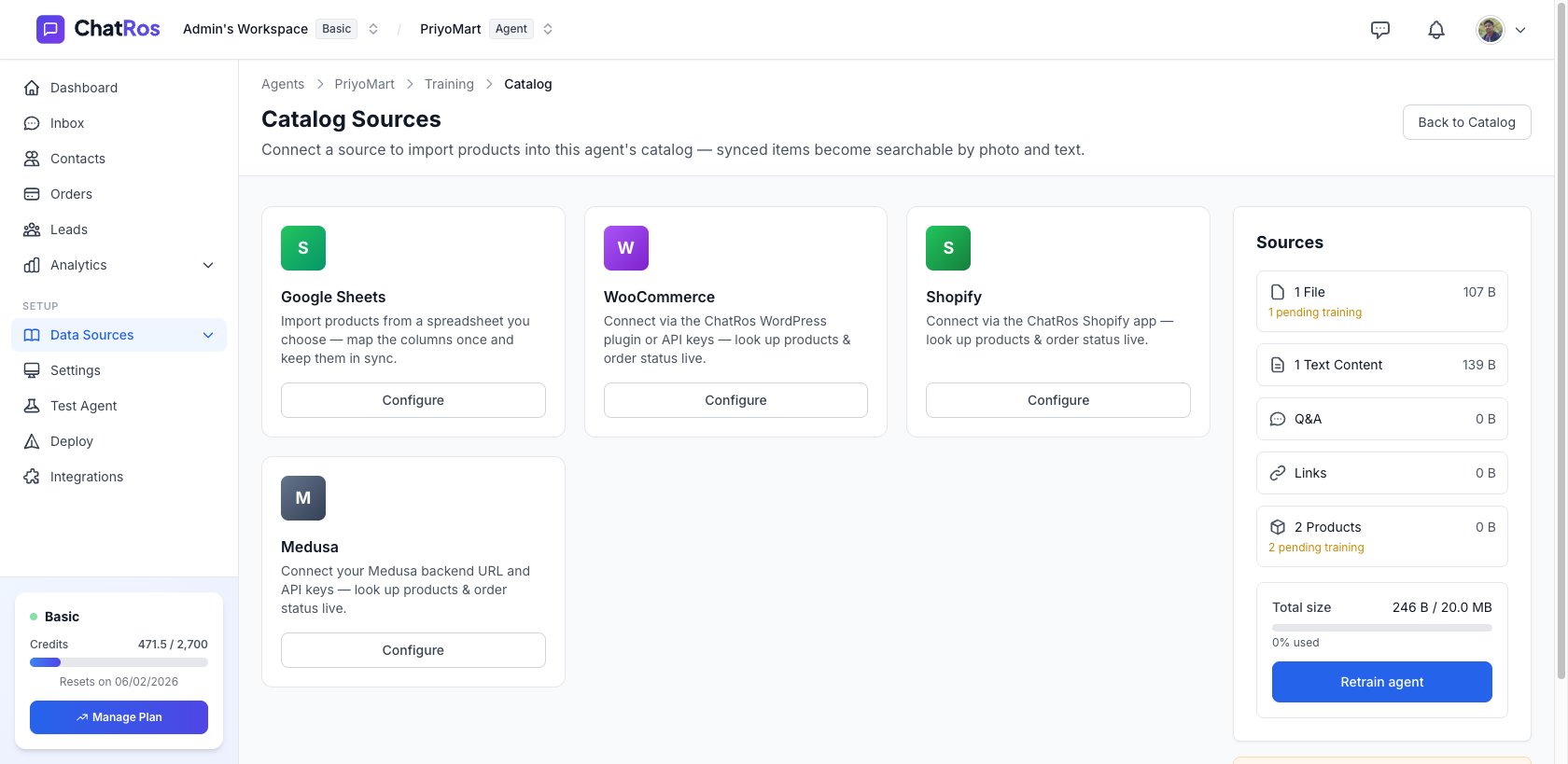 Pick a source and follow its connect flow. For stores, see the [Shopify](/user-guides/deploy/shopify) and [WooCommerce](/user-guides/deploy/woocommerce) guides. For **Google Sheets**, choose your spreadsheet and map the product columns once.
### Sync
Back on the Catalog page, click **Sync** to pull the latest products from every connected source. ChatRos syncs the store first, then any connected spreadsheet, and re‑trains what changed.
Products carry a **Source** column so you can see whether each item was added manually, imported from CSV, or synced from a store/spreadsheet.
With products and images in place, let customers find items by sending a photo.
Pick a source and follow its connect flow. For stores, see the [Shopify](/user-guides/deploy/shopify) and [WooCommerce](/user-guides/deploy/woocommerce) guides. For **Google Sheets**, choose your spreadsheet and map the product columns once.
### Sync
Back on the Catalog page, click **Sync** to pull the latest products from every connected source. ChatRos syncs the store first, then any connected spreadsheet, and re‑trains what changed.
Products carry a **Source** column so you can see whether each item was added manually, imported from CSV, or synced from a store/spreadsheet.
With products and images in place, let customers find items by sending a photo.